
How to Create a Conversation Form for Facebook Ads
When you run Facebook ads with an Engagement objective, you can set up a Conversation Form that appears when parents click on your ad. This helps you collect leads and start conversations right inside Facebook Messenger, Instagram, or WhatsApp.
What is a Conversation Form?
A Conversation Form lets prospective families message you directly from your ad. You can greet them with a welcome message, offer quick reply options (like FAQs), and even send automated responses — all without them leaving Facebook.
How to Create a New Conversation Form
Follow these steps while creating your Facebook ad campaign in Ad Manager:
- In Ad Manager, create a new Meta ad campaign and select Engagement as your objective.
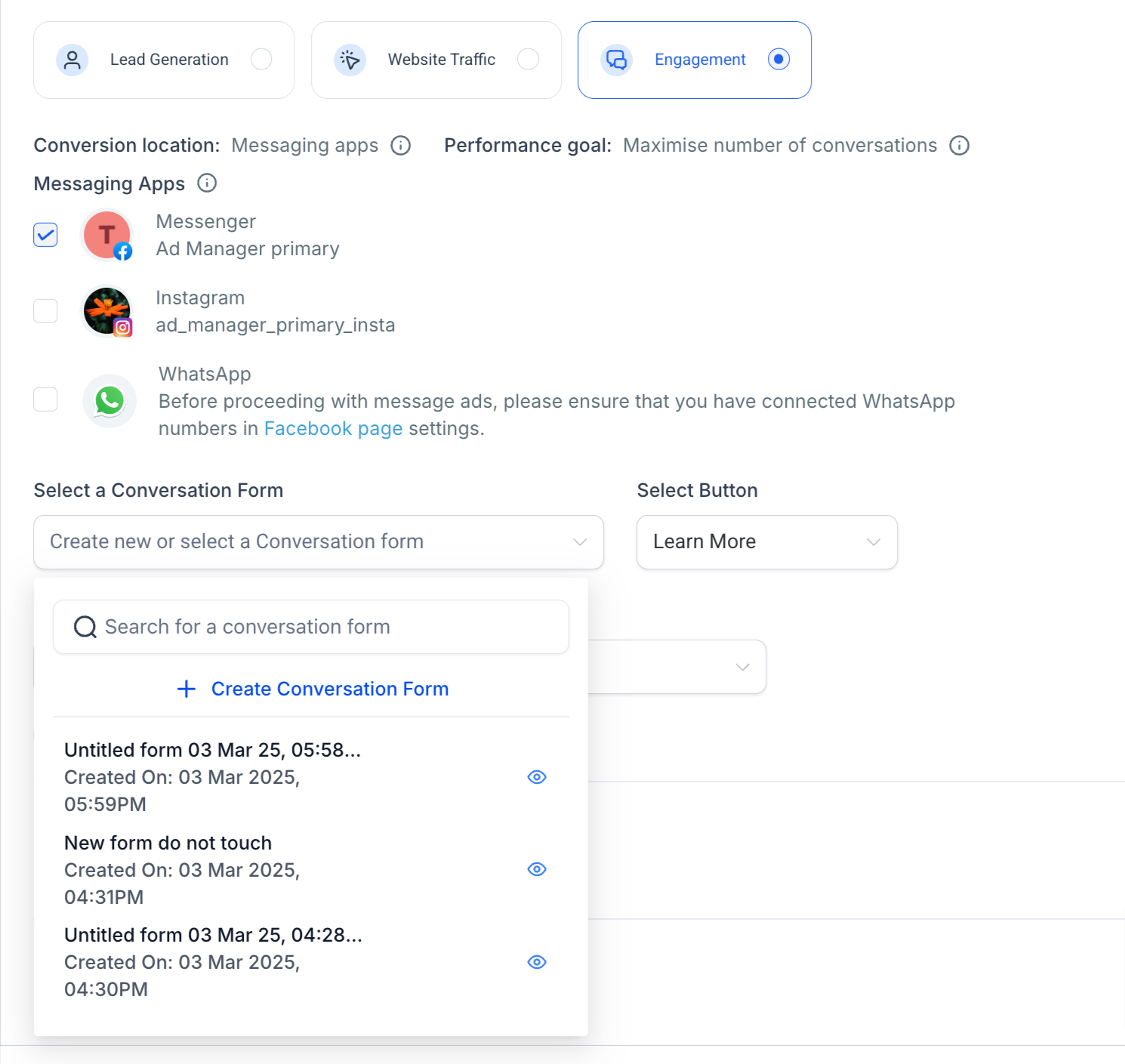
- When you reach the ad setup screen, look for the Conversation Form dropdown.
- Click the dropdown and select Create Conversation Form.
- A dialog box will open where you can define your form settings.
Setting Up Your Conversation Form
1. Name Your Form
Give your form a clear name for internal reference — like "Spring Enrollment 2025" or "Tour Request Form."
2. Write a Welcome Message
This greeting appears when parents click your ad's call-to-action button (like "Send Message").
Example:
"Hi! Thanks for your interest in [Your Center Name]. How can we help you today?"
3. Add Quick Reply Options
Set up 3-5 common questions or buttons parents can tap to get instant answers.
Examples:
- "Schedule a tour"
- "Check availability"
- "Learn about our programs"
- "What are your rates?"
- "Speak with enrollment director"
4. Create Automated Responses
Write responses that send automatically when parents select a quick reply.
Example:
If they tap "Learn about our programs," your automated response could say:
"We offer programs for infants through pre-K, with flexible schedules and play-based curriculum. Would you like to schedule a tour to see our classrooms?"
5. Save and Apply
Click Create to save your conversation form. It will now be linked to your ad campaign.
Preview Your Form
The preview section shows how your conversation form will appear in each messaging app (Messenger, Instagram, WhatsApp). The preview updates based on which platforms you selected for your ad campaign.
What Happens After a Parent Messages You?
When a parent uses your conversation form, the conversation appears in your Enrollio inbox. From there, you can:
- Continue the conversation manually
- Set up automations to send follow-up messages
- Add them to your enrollment pipeline
- Schedule a tour automatically
All the parent's information and conversation history are saved in their contact record in Enrollio.
Comments
Please sign in to leave a comment.