
Overview
The WhatsApp Customer Service Window Check action helps you maximize your WhatsApp messaging while managing costs. It checks whether a 24-hour customer service window is currently open with a family, allowing you to send unlimited free-form messages during that time.
When the window is open, you can send up to 1,000 service conversations each month at no additional cost. This feature ensures you're communicating effectively with families while staying within WhatsApp's cost-efficient messaging framework.
What is a Customer Service Window?
When a parent or family member sends a WhatsApp message to your childcare center, a 24-hour customer service window opens. During this window, you can send unlimited free-form messages back to them.
Once the 24-hour window closes, you can only send pre-approved WhatsApp template messages to restart the conversation.
How This Action Works
The WhatsApp Customer Service Window Check action creates two paths in your automation:
- Window Open: Send free-form messages directly to the family
- Window Closed: Send only pre-approved template messages to re-initiate contact
This ensures your messages always get delivered while optimizing your WhatsApp costs.
Setting Up the Action
Before You Start
Make sure WhatsApp is enabled in your Enrollio account. If you plan to send messages when the window is closed, you'll need at least one approved WhatsApp template.
Add the Action to Your Automation
- Navigate to Automations in your Enrollio dashboard
- Click Create Automation or edit an existing one
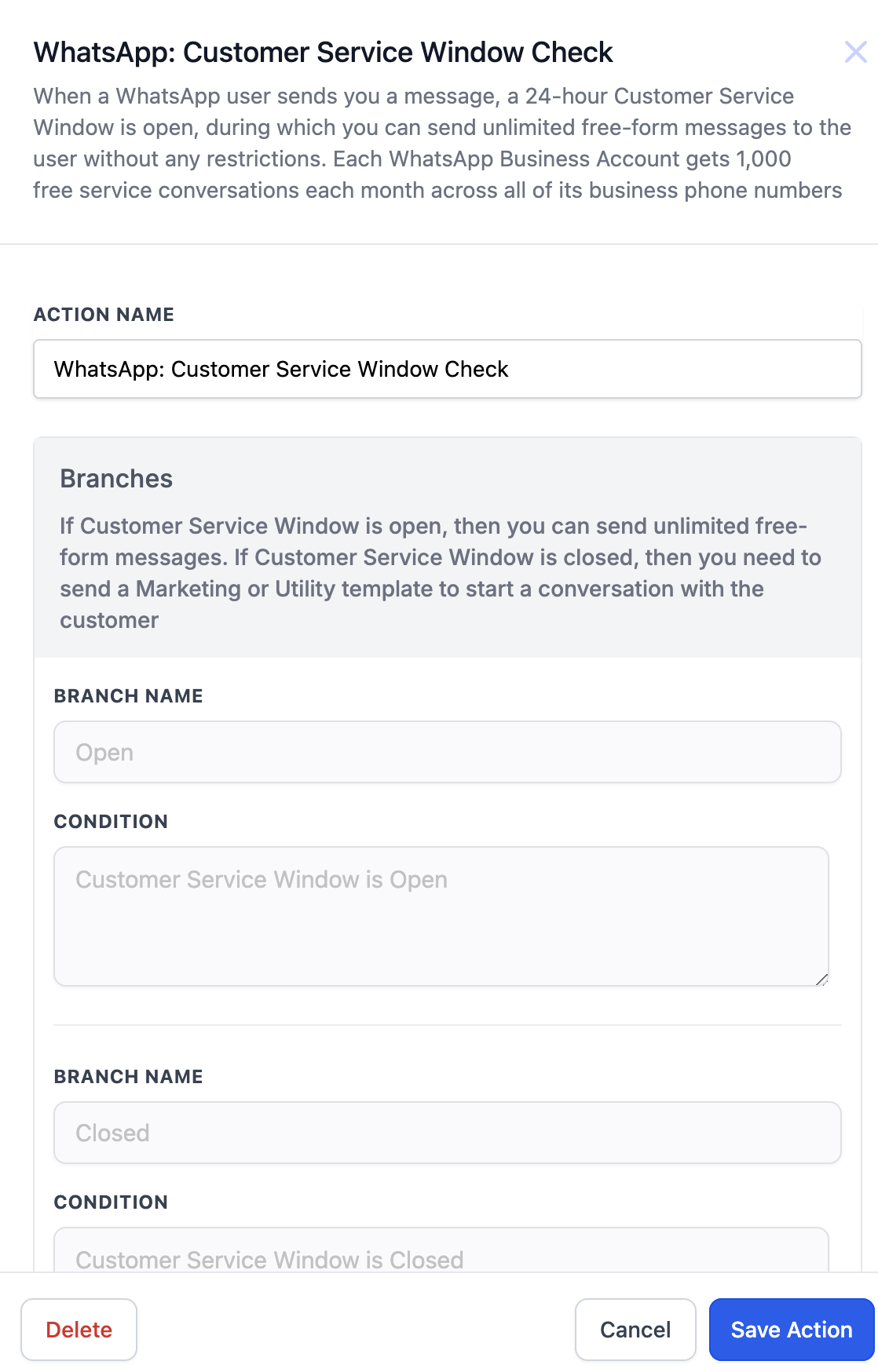
- Add the WhatsApp: Customer Service Window Check action
- Two branches will automatically appear: "Open" and "Closed"
Configure the Open Branch
- Under the "Open" branch, add a WhatsApp Send Message action
- Select None - Free Form Message as your message type
- Write your personalized message to the family
When the window is open, this free-form message will be sent at no additional cost.

Configure the Closed Branch
- Under the "Closed" branch, add a WhatsApp Send Message action
- Select an approved Marketing or Utility Template
- Fill in any required template variables
When the window is closed, only this pre-approved template will be sent to re-engage the family.

Real-World Example
Let's say you want to follow up with parents 24 hours after they schedule a tour to see if they have questions.
Automation Setup:
- Trigger: Tour appointment booked
- Wait: 24 hours
- Action: WhatsApp Customer Service Window Check
Open Branch:
Send a personalized free-form message: "Hi [Parent Name]! Just wanted to check in after your tour yesterday. Do you have any questions about enrollment or our programs?"
Closed Branch:
Send an approved template: Your pre-approved "Tour Follow-Up" template that asks if they need more information.
Outcome:
If the parent recently messaged you (window is open), they receive your personalized follow-up at no cost. If they haven't engaged recently (window is closed), they receive your approved template to restart the conversation.
Common Questions
What's the difference between free-form messages and templates?
Free-form messages can only be sent within the 24-hour customer service window. They let you write anything you want, making conversations feel natural and personal.
Templates must be pre-approved by WhatsApp and can be sent anytime, even outside the 24-hour window. They're useful for re-initiating conversations with families who haven't contacted you recently.
How do I check my free conversation count?
View your monthly free-tier conversation usage in your Facebook Business Manager under Account Tools Insights. You get 1,000 free service conversations each month.
Can I send automated messages outside the 24-hour window?
Yes, but only using pre-approved WhatsApp templates. The template must be approved by WhatsApp before you can use it in your automations.
What happens after I use my 1,000 free conversations?
WhatsApp will charge a small fee per conversation after you exceed the free tier. The exact cost depends on your region and conversation type.
What is a Free Entry Point Conversation?
This occurs when a family clicks a "Click to WhatsApp" ad or button on your website. It opens a 72-hour window (instead of 24 hours) where you can send both free-form and template messages at no cost.
Comments
Please sign in to leave a comment.