
WhatsApp Automation Guide
WhatsApp is one of the most effective ways to reach parents and families. With Enrollio's WhatsApp automation, you can send tour reminders, enrollment updates, and timely responses—all automatically.
This guide shows you how to set up WhatsApp automations that save time and keep families engaged.
Creating Your First WhatsApp Automation
Let's build an automation that responds when a parent messages your center on WhatsApp.
Step 1: Start a New Automation
- Go to Automations → Create Automation
- Select Start from Scratch
Step 2: Set Up Your Trigger
- Click Add New Trigger
- Search for and select Customer Replied
Step 3: Filter for WhatsApp Only
- Click Add filters
- Select Reply Channel → WhatsApp
- Click Save Trigger
This ensures the automation only runs when someone messages you on WhatsApp—not email or SMS.
Step 4: Add Your WhatsApp Action
- Click the + button to add an action
- Search for and select WhatsApp
- Choose whether to send a pre-approved template or write a manual message
- Click Save Action
Step 5: Publish Your Automation
- Click Publish
- Click Save
Your automation is now live! When a parent messages your center on WhatsApp, they'll receive your automated response.
Using Smart Branching with WhatsApp
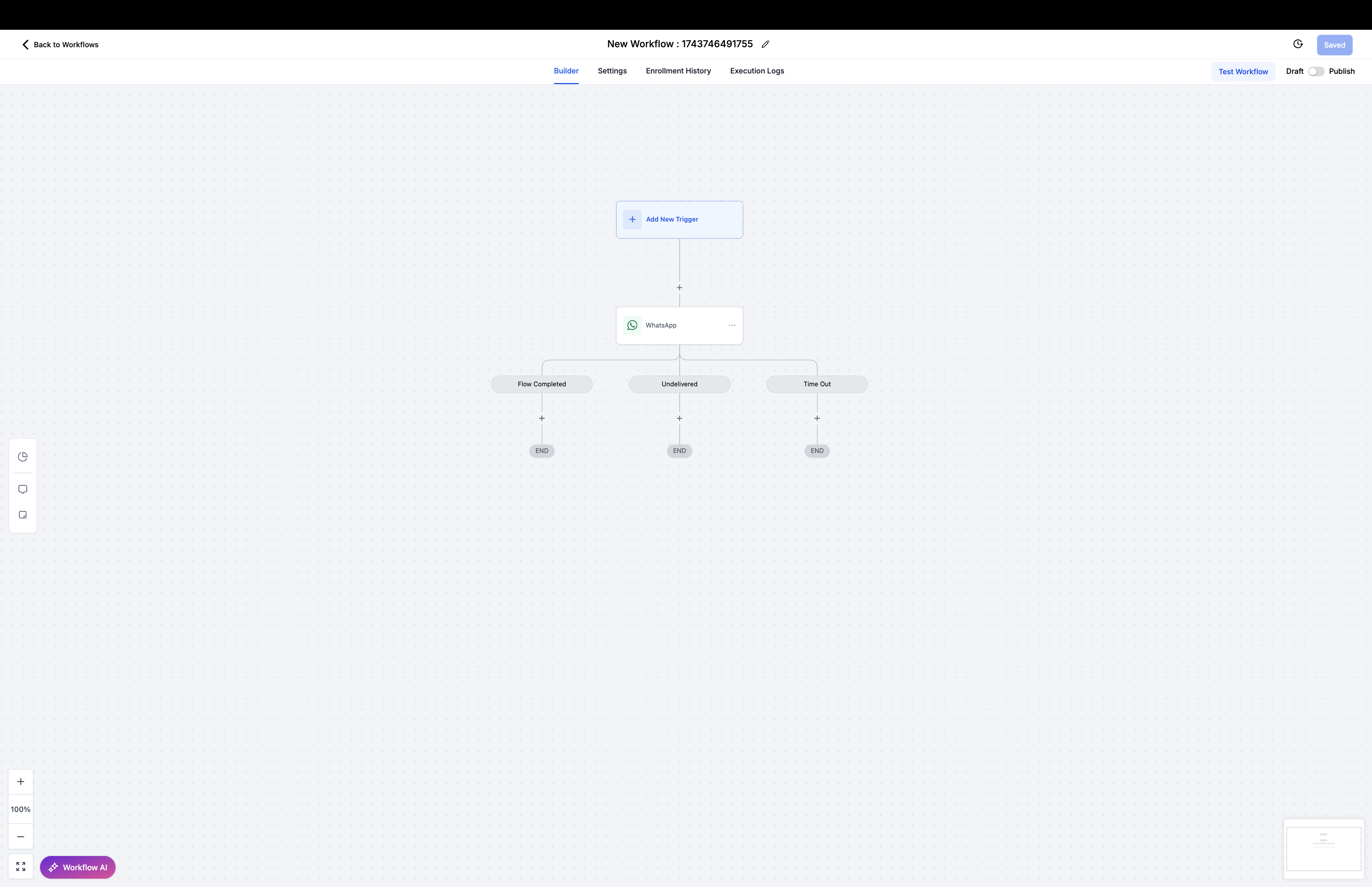
When you send WhatsApp messages with buttons or interactive flows, you can create different paths based on how parents respond.
Available Branch Options:
- Flow Completed – Triggers when a parent completes your WhatsApp flow (perfect for tour registration confirmations)
- Undelivered – Activates if the message can't be delivered (helps you catch unreachable contacts)
- Timeout – Runs when a parent doesn't respond within your set timeframe
Use branches to send follow-up messages, reminders, or alerts based on how families interact with your messages.
Selecting Your WhatsApp Phone Number
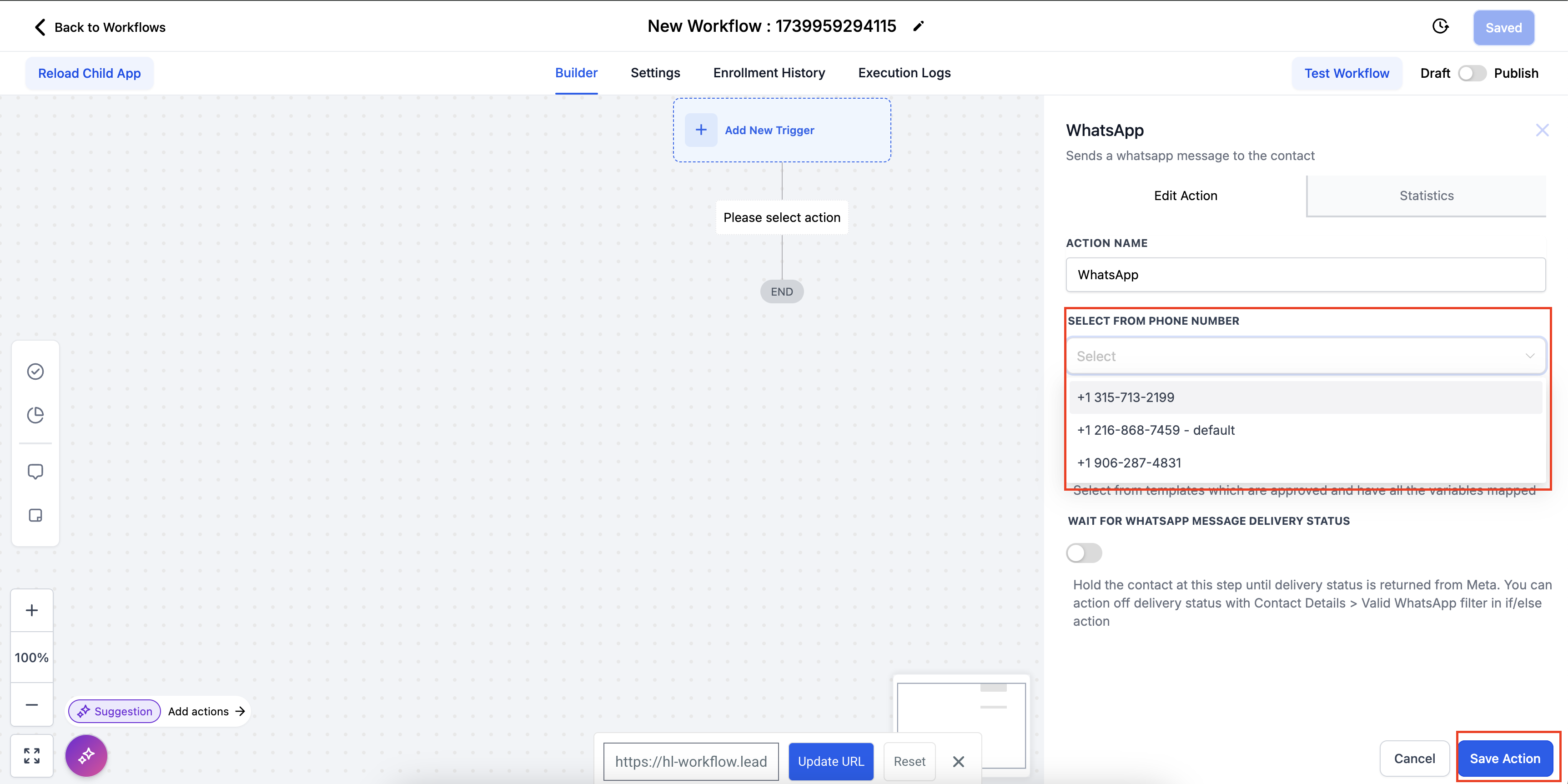
If you have multiple WhatsApp numbers connected to Enrollio, you can choose which one sends each message.
How to Choose Your Sending Number:
- In your automation, click the + button to add an action
- Select WhatsApp
- Choose your phone number from the dropdown menu
Note: Only WhatsApp numbers with a "Connected" status will appear in the dropdown.
Waiting for Parent Replies
You can pause your automation until a parent responds, creating natural back-and-forth conversations.
Setting Up Reply Wait Steps:
- Go to Automations → Create Automation → Start from Scratch
- Select Add New Trigger and choose Contact Created
- Click + to add an action, then select WhatsApp
- Choose your WhatsApp template and click Save Action
- Click + again and select Wait
- Configure: Wait For → Contact Reply, Reply To → WhatsApp
- Click Save Action
- Add your next WhatsApp action (this will send after they reply)
- For the follow-up message, select None - Manual Text
- Click Save Action and Publish
Setting Up Do Not Disturb (DND) for WhatsApp
When parents request to stop receiving messages (like texting "STOP"), you can automatically respect their preferences.
Creating a DND Automation:
- Go to Automations → Create Automation → Start from Scratch
- Select Add New Trigger → Customer Replied
- Add filters:
- Reply Channel → WhatsApp
- Contains Phrase → STOP
- Click Save Trigger
- Click + to add an action
- Search for and select Enable/Disable DND
- Choose Enable DND for specific channels → WhatsApp
- Click Save Action
Now when a parent texts "STOP" on WhatsApp, they'll automatically be added to your DND list for that channel.
Frequently Asked Questions
Does DND affect other communication channels or just WhatsApp?
You decide. You can configure DND to apply to all channels (WhatsApp, SMS, email) or just WhatsApp. This lets you respect channel-specific preferences—for example, a parent might want to opt out of WhatsApp but still receive emails.
What's the difference between "None - Manual Text" and selecting a template?
Templates are pre-approved messages you can send anytime—even outside the 24-hour conversation window. Manual text is free-form messaging you write yourself, but it only works within 24 hours of a parent's last reply. Within that 24-hour window, manual messages are free.
Can I combine WhatsApp with other channels in the same automation?
Yes! You can build automations that send WhatsApp messages, follow up with SMS, and send email confirmations—all in one sequence. This creates comprehensive parent communication flows.
Can I send WhatsApp messages outside the 24-hour window?
Yes, using pre-approved WhatsApp templates. These messages work anytime but may incur additional charges. They're perfect for enrollment reminders, tour invitations, and re-engagement campaigns.
What's a "Free Entry Point Conversation" and how is it different?
This special conversation type happens when a parent clicks a "Click to WhatsApp" ad or Facebook call-to-action button. It lasts 72 hours (instead of the standard 24 hours), and you can send both templates and free-form messages during this extended window.
What happens if a parent replies with something unexpected during a "Wait for Reply" step?
The automation continues waiting until they send a reply that matches your configuration. To handle unexpected responses, add additional branches with alternative conditions—for example, one branch for "YES" and another for "NO."
Why don't I see my phone number in the dropdown?
Only WhatsApp numbers with "Connected" status appear in the dropdown. Check your WhatsApp integration settings to ensure your number is properly connected.
Can I use multiple WhatsApp numbers in Enrollio?
Yes! If you have multiple WhatsApp numbers connected, you can select which one to use for each automation. This is helpful if you have different numbers for different locations or programs.
Do I need to select the phone number for every automation?
Yes. Each automation requires you to choose which WhatsApp number sends the messages. This ensures messages come from the right number every time.
What if I select the wrong phone number?
Messages will send from the number you selected. To fix this, edit your automation and choose the correct number before publishing changes.
Comments
Please sign in to leave a comment.