
WhatsApp: Automation Statistics
Track the performance of your WhatsApp messages sent through automations. The statistics feature gives you a complete view of how your messages to families are performing, from delivery to engagement.
What You Can Track
Enrollio shows you detailed metrics for every WhatsApp message sent through your automations:
- Total messages sent — Overall volume of messages triggered
- Pending messages — Messages queued but not yet sent
- Successfully sent — Messages delivered to WhatsApp
- Delivered messages — Messages that reached the recipient's phone
- Read messages — Messages opened by parents
- Failed messages — Messages that couldn't be delivered
This breakdown helps you understand which messages are connecting with families and where issues might be happening.
How to View WhatsApp Statistics in Automations
Step 1: Go to Automations and select the automation that includes a WhatsApp action.
Step 2: Click on the WhatsApp Action you want to review.
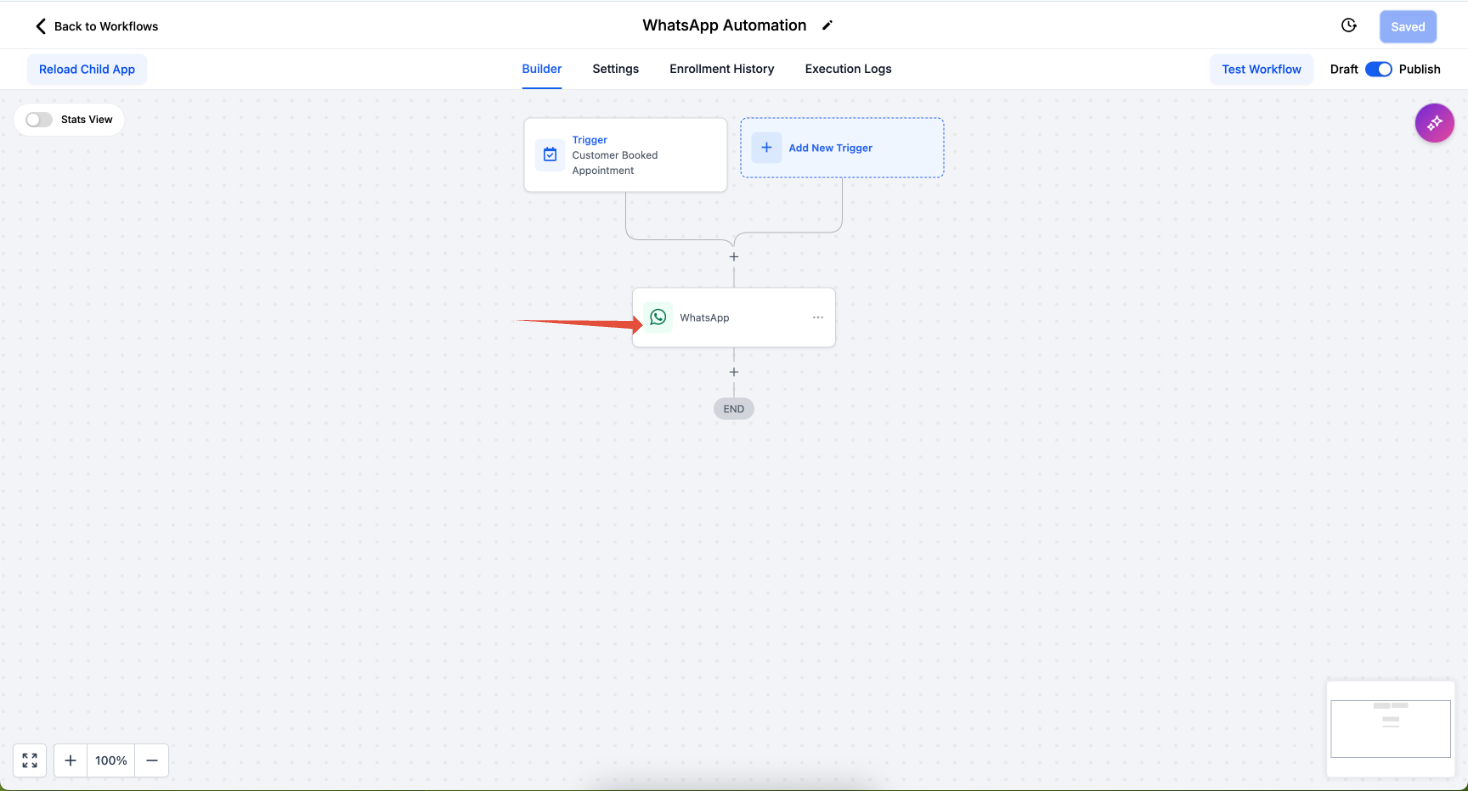
Step 3: Click the Statistics tab to view performance metrics.
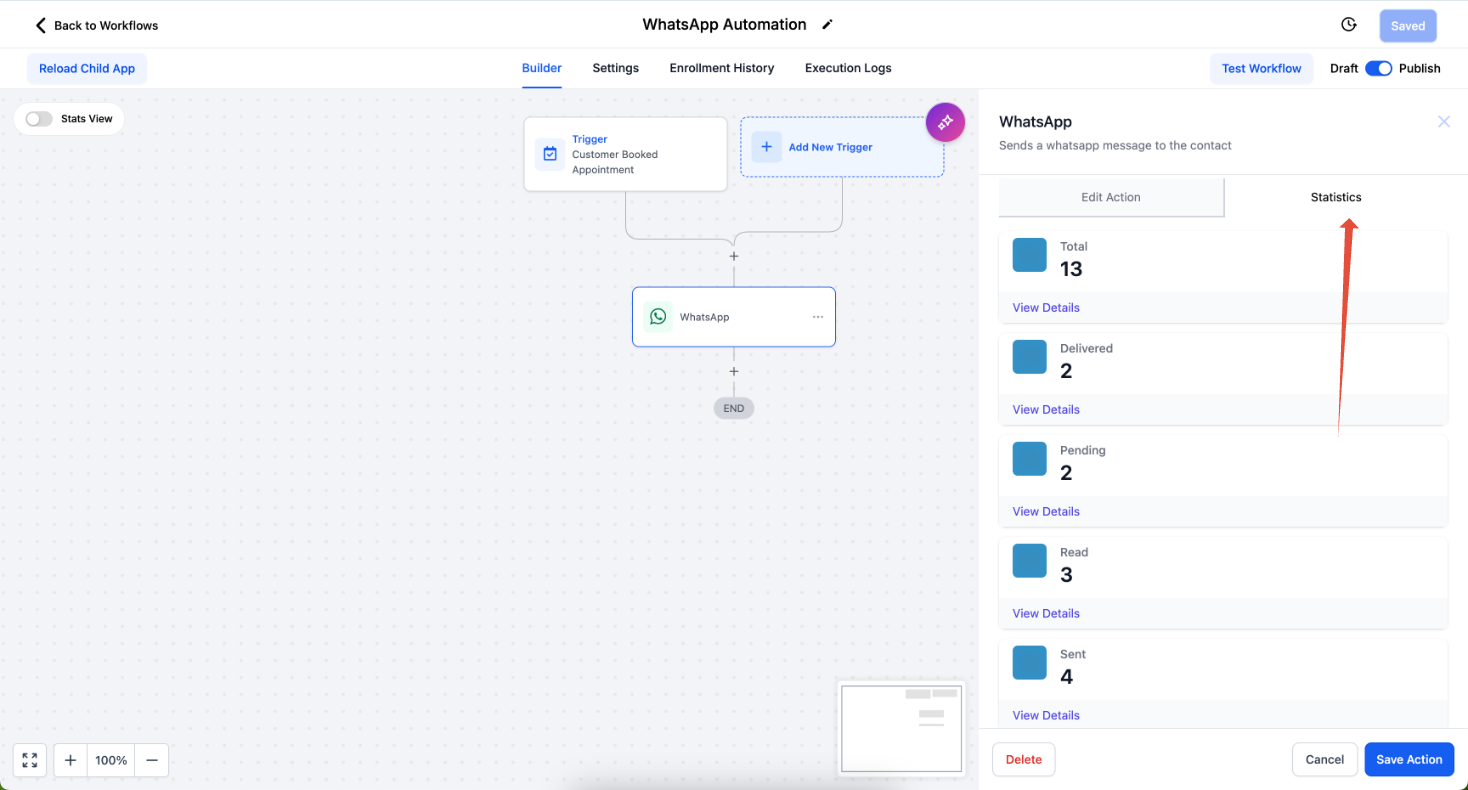
You'll see a detailed breakdown of all WhatsApp messages sent from that specific action in your automation.
Understanding Message Status
Each message moves through several stages. Here's what each status means:
| Status | What It Means |
|---|---|
| Total | Total number of WhatsApp messages triggered through this action for your selected date range. |
| Pending | Messages queued but not yet sent. These are waiting to be triggered. |
| Sent | Messages delivered to WhatsApp and awaiting delivery to the recipient. Shows as a single checkmark in WhatsApp. |
| Delivered | Messages successfully delivered to the parent's device. Shows as double checkmarks. Note: This includes parents who have disabled read receipts. |
| Read | Messages opened and read by the recipient. Shows as blue checkmarks in WhatsApp. |
| Failed | Messages that couldn't be delivered due to: invalid phone number, non-WhatsApp number, blocked account, template issues, or marketing message limits. |
Note: If a parent has read receipts turned off in WhatsApp, messages will show as "Delivered" even after they've read them. This is a WhatsApp privacy setting you can't override.
How to Export WhatsApp Statistics
Download your message data for reporting or record-keeping.
Step 1: Go to Automations and select your automation with WhatsApp actions.
Step 2: Click on the WhatsApp Action, then click Statistics.
Step 3: Review the statistics, then click Export.
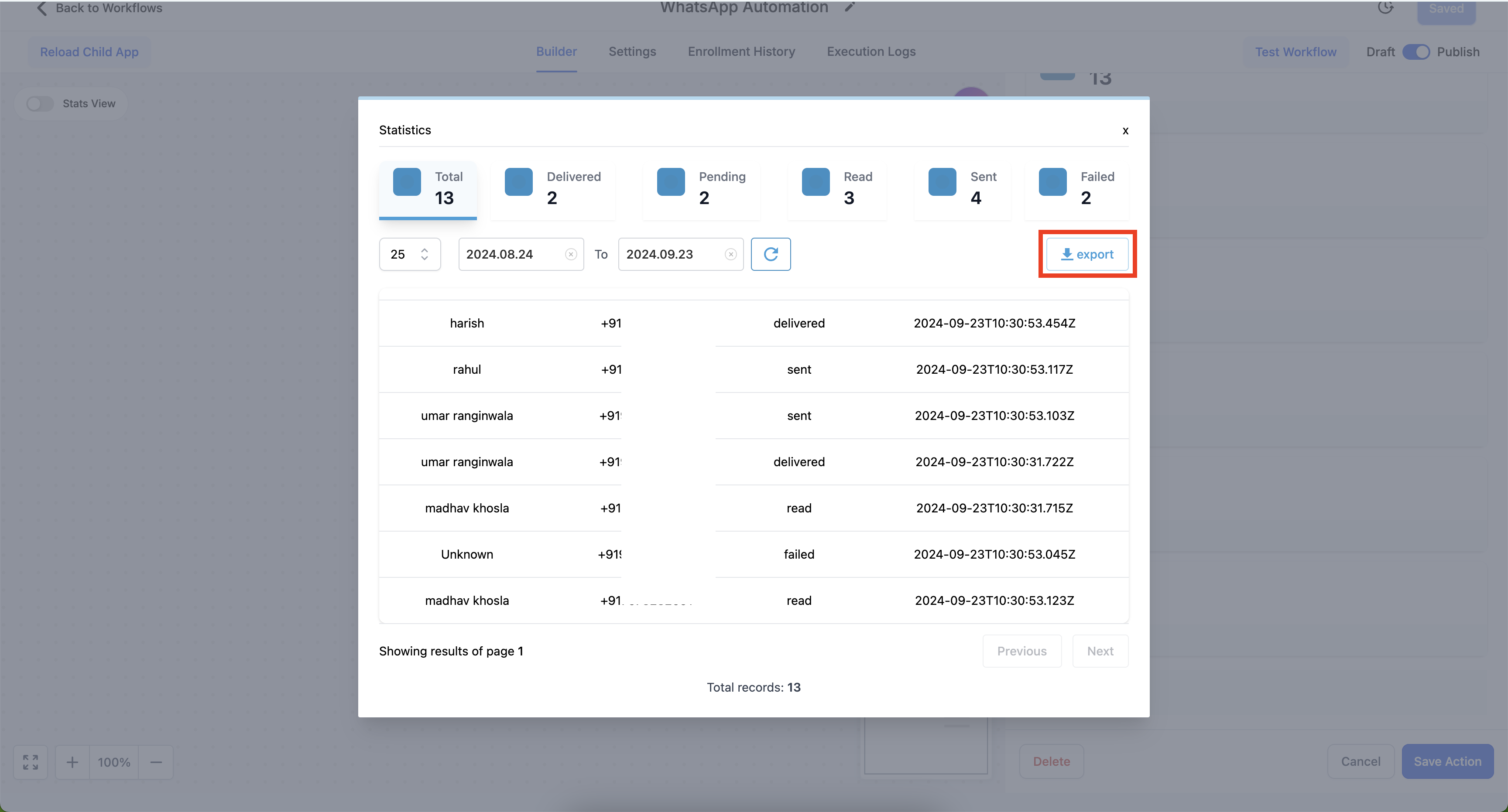
A CSV file will download with complete message details including recipient name, phone number, delivery status, and timestamp for each message.
Common Questions
What insights can I get from WhatsApp statistics?
You'll see detailed analytics on message delivery and engagement, including how many messages were sent, delivered, read, are still pending, or failed to send.
How do I access WhatsApp message statistics?
Go to Automations → Select your automation → Click the WhatsApp Action → Click Statistics.
What does the "Total" number show?
Total reflects all WhatsApp messages triggered by that action during your selected date range.
What's the difference between "Sent" and "Delivered"?
"Sent" means the message left Enrollio and reached WhatsApp (one checkmark). "Delivered" means it reached the parent's phone (double checkmarks).
What if a parent has read receipts turned off?
Their messages will show as "Delivered" even after they read them. WhatsApp's privacy settings prevent you from seeing read status for these users.
Why would a message fail?
Common reasons include:
- Invalid or non-WhatsApp phone numbers
- Template approval issues or blacklisted templates
- Blocked WhatsApp business account
- Marketing message limits exceeded
Can I download statistics for reporting?
Yes. Click the Export button in the Statistics view to download a CSV file with all message details.
Does the export include individual message details?
Yes. Each row includes the parent's name, phone number, delivery status, and timestamp for that specific message.
Comments
Please sign in to leave a comment.