
WhatsApp Template Performance Analytics
Track exactly how your WhatsApp messages are performing with detailed analytics for each template. See which messages parents are opening, which buttons they're clicking, and where to improve your communication strategy.
You can now monitor:
- Number of messages sent, delivered, and read
- Button clicks for interactive templates (URL buttons, Quick Replies)
Use these insights to fine-tune your messaging and improve engagement with families.
How to View Template Performance
Template analytics show you how many times a template has been sent, delivered, read, and how often parents clicked any URL or Quick Reply buttons included in the message.
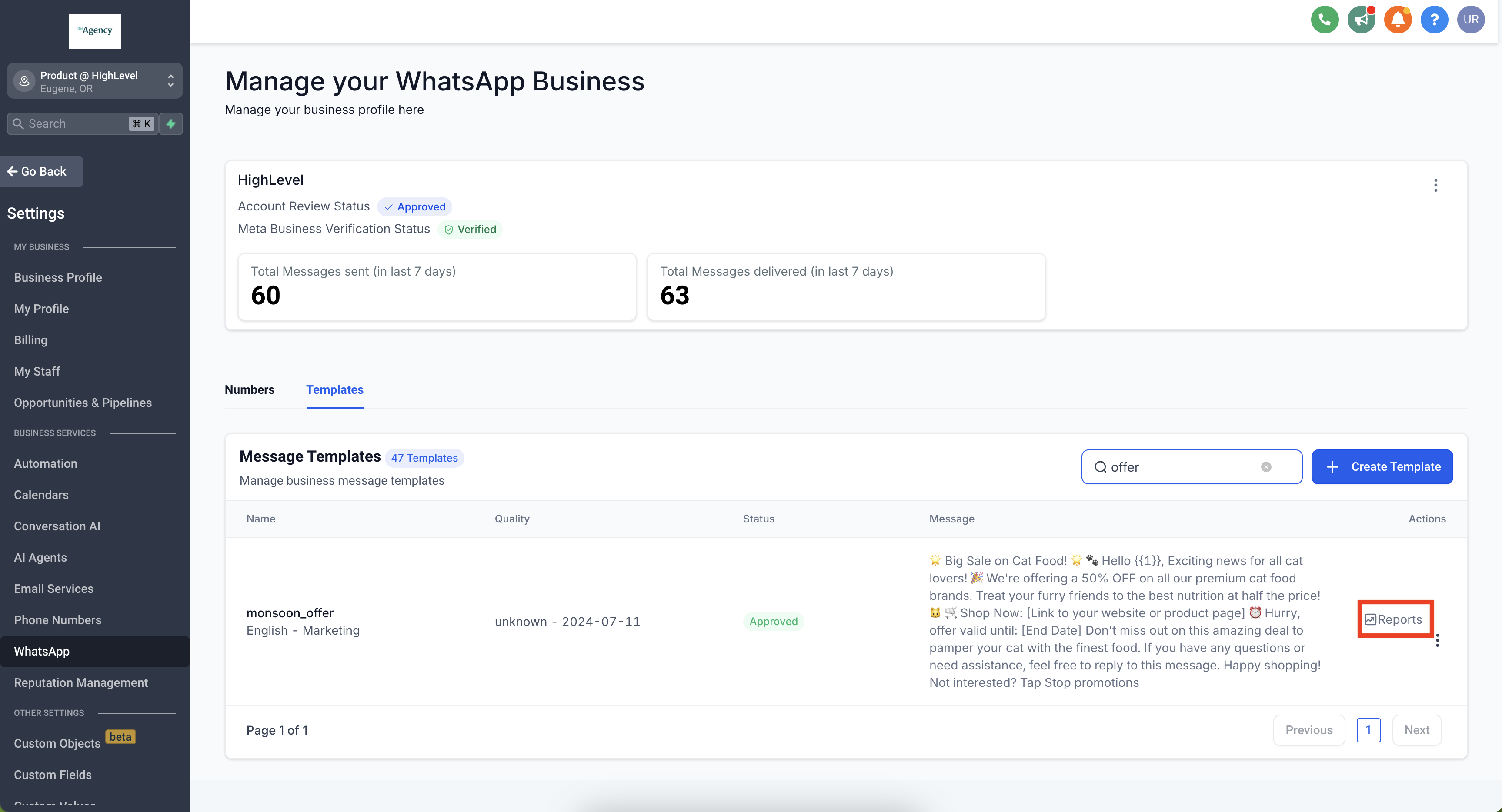
Step 1: Navigate to Your Templates
Go to Settings → WhatsApp → Templates
Step 2: Open Template Reports
Search for your template and click Reports
Step 3: View Deliverability Metrics
Click the Deliverability tab
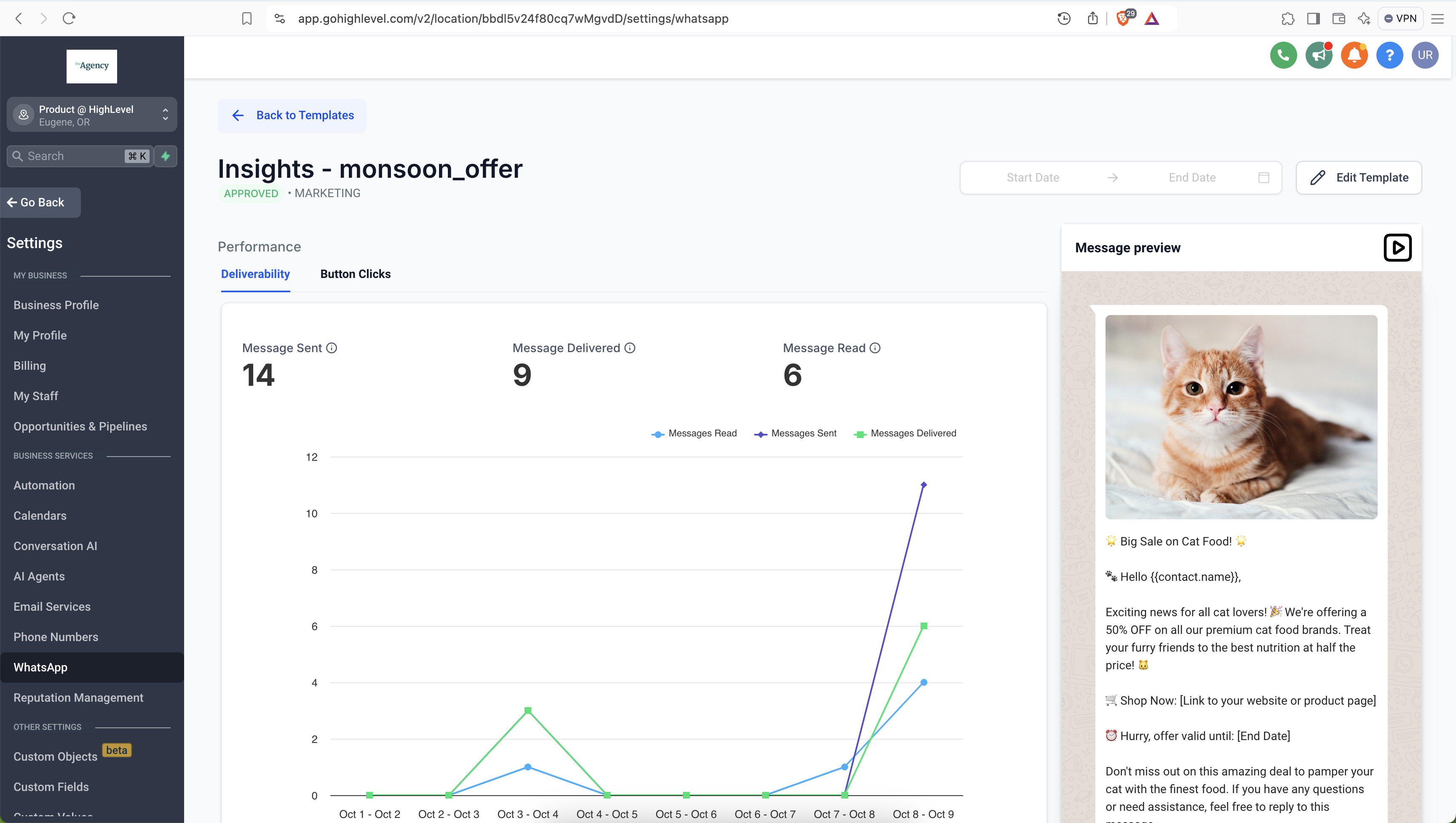
Step 4: Select Your Date Range
Choose your start and end dates to view performance for that period
Understanding the Metrics
- Sent: Message sent (1 gray checkmark)
- Delivered: Message delivered to parent's phone (2 gray checkmarks)
- Read: Parent opened the message (blue checkmarks)
Tracking Button Clicks
Button click analytics are only available for templates categorized as MARKETING or UTILITY. This helps you see which calls-to-action are driving the most engagement.
To View Button Clicks:
- Go to Settings → WhatsApp → Templates
- Search for your template and click Reports
- Click the Button Clicks tab
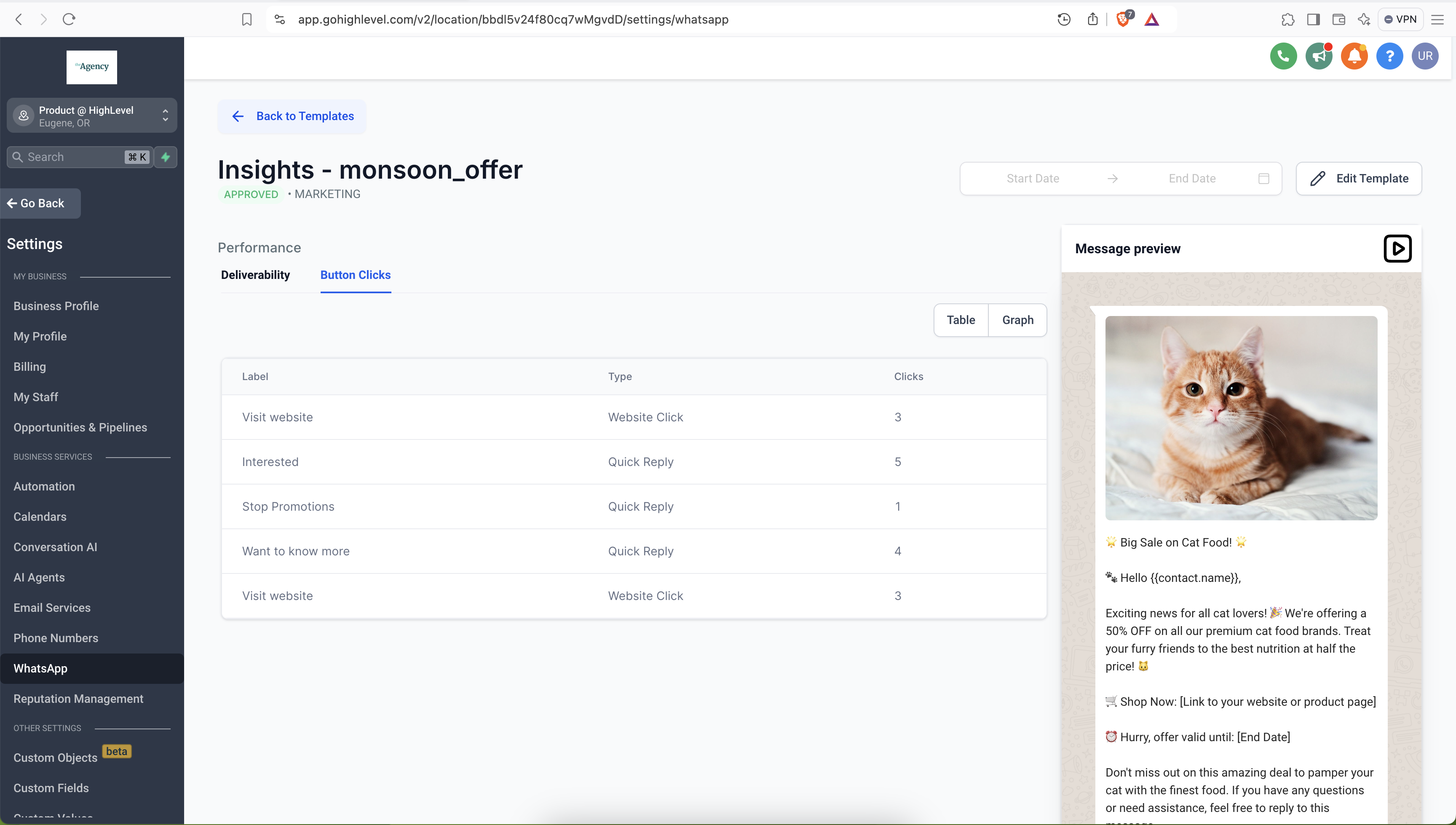
URL Buttons
URL buttons open a link in the parent's web browser when tapped. Common uses include linking to your enrollment page, tour booking, or parent portal.
Limits:
- Maximum 2 URL buttons per template
- Not available for businesses in the EU, UK, or Japan
Quick Reply Buttons
Quick Reply buttons send a predefined message when clicked. They're perfect for simple responses like "Yes, interested in a tour" or "Unsubscribe from updates."
Rules:
- Maximum 10 Quick Reply buttons per template
- Must be grouped correctly with other button types
Pro Tip: If you're using multiple button types, group Quick Reply buttons together separately from URL or Phone buttons. Valid examples:
- Quick Reply, Quick Reply
- Quick Reply, Quick Reply, URL, Phone
- URL, Phone, Quick Reply, Quick Reply
Invalid groupings like "Quick Reply, URL, Quick Reply" will cause errors.
Frequently Asked Questions
What templates support button click tracking?
Only templates categorized as MARKETING or UTILITY include button click analytics. This gives you real-time data on which buttons parents are engaging with.
How many buttons can I include?
You can add up to 2 URL buttons and up to 10 Quick Reply buttons per template. Just make sure to group them correctly — Quick Reply buttons must be grouped together.
What date ranges can I analyze?
You can select any custom date range to view daily performance metrics for your templates. This helps you compare week-over-week or identify trends during enrollment seasons.
Are there regional limitations?
Yes. Button click analytics aren't supported for WhatsApp Business Accounts in the European Union, United Kingdom, or Japan, or if your business phone number is from one of these regions.
Why use template analytics?
Template analytics help you understand which messages resonate with families. See which templates get opened most often, which calls-to-action drive clicks, and where parents drop off. Use this data to refine your communication and improve enrollment conversions.
Comments
Please sign in to leave a comment.