
Interactive WhatsApp Messages
Interactive WhatsApp Messages let you add buttons, lists, location pins, and contact cards to WhatsApp messages sent through Enrollio automations. This makes it easier for parents to respond quickly—whether they're confirming a tour, selecting a program, or saving your center's contact information.
This guide covers what interactive messages are, which types you can send in Enrollio, and how to set them up inside your automations.
Table of Contents
- What are Interactive WhatsApp Messages?
- Key Benefits
- Prerequisites: Customer Service Window
- How to Check or Trigger the Customer Service Window
- How to Add the WhatsApp Interactive Messages Action
- Interactive Reply Buttons
- Location Messages
- Contact Cards
- List Messages
- Call-to-Action URL Buttons
- Branching & Automation Behavior
- Best Practices
- Frequently Asked Questions
What are Interactive WhatsApp Messages?
Enrollio supports Interactive WhatsApp Messages directly inside the Automations module. A new action called WhatsApp Interactive Messages makes it easy to send rich, interactive experiences to parents on WhatsApp.
With this feature, you can send:
- Interactive Reply Buttons – Up to 3 quick-reply buttons parents can tap
- Location Messages – Send a map pin with your center's address
- Contact Messages – Send contact cards with names, phone numbers, addresses, and emails
- List Messages – Present structured menus with multiple options families can choose from
Key Benefits of Interactive WhatsApp Messages
Higher Reply Rates: Parents respond faster because they can tap a button instead of typing a message.
Cleaner Data: Standardized choices eliminate typos and keep your enrollment data accurate.
Lower Messaging Costs: Window-aware sending helps you avoid unnecessary charges.
More Enrollments: Direct calls-to-action move families to tour bookings, applications, or payments with less friction.
Fewer Mistakes: Predefined options minimize confusion and keep conversations clear and on track.
Prerequisites: Customer Service Window
Before you send Interactive WhatsApp Messages, you must ensure the WhatsApp 24-hour Customer Service Window is open.
When a parent sends your center a WhatsApp message, a 24-hour Customer Service Window begins. During this window:
- You can send unlimited interactive WhatsApp messages at no cost
- There are no restrictions on free-form messaging
Learn more about WhatsApp Customer Service Window
How to Check or Trigger the Customer Service Window
You have two options in Automations:
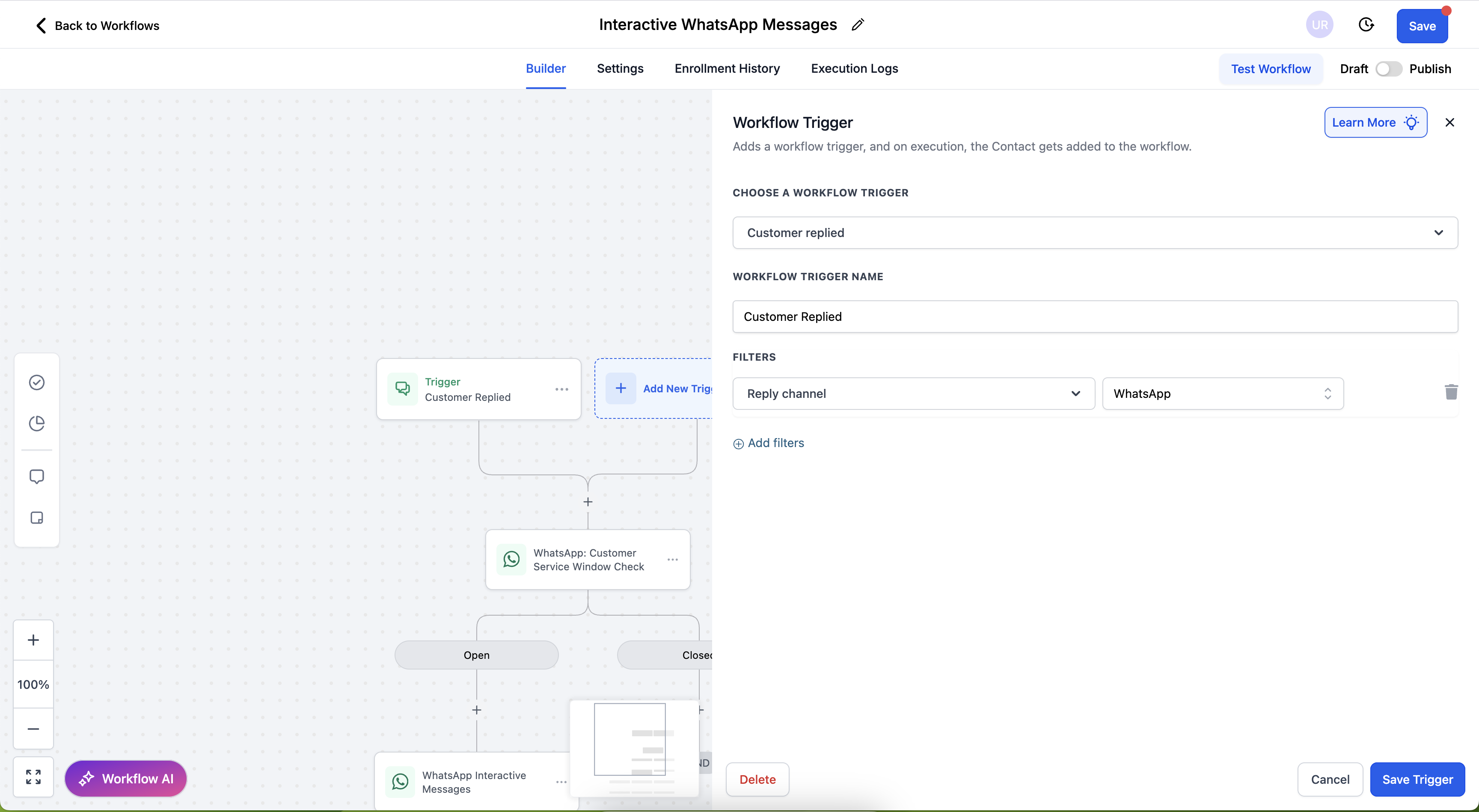
Option 1: Use the Customer Replied Trigger (WhatsApp)
The Customer Replied via WhatsApp trigger ensures your automation only starts when a parent sends a WhatsApp message, which automatically opens the 24-hour window.
Here's how to configure this trigger:
- Automation Trigger: Customer Replied
- Filters: Set Reply Channel = WhatsApp
Option 2: Use the WhatsApp: Customer Service Window Check Action
Use the WhatsApp: Customer Service Window Check action to evaluate whether the 24-hour window is open before sending your interactive message.
Here's how to configure this action:
- Action Name: WhatsApp: Customer Service Window Check
- Conversation Phone Number: Choose the WhatsApp number you're sending from
-
Configure Branches:
- Branch Name: Open – Condition: Customer Service Window is Open
- Branch Name: Closed – Condition: Customer Service Window is Closed
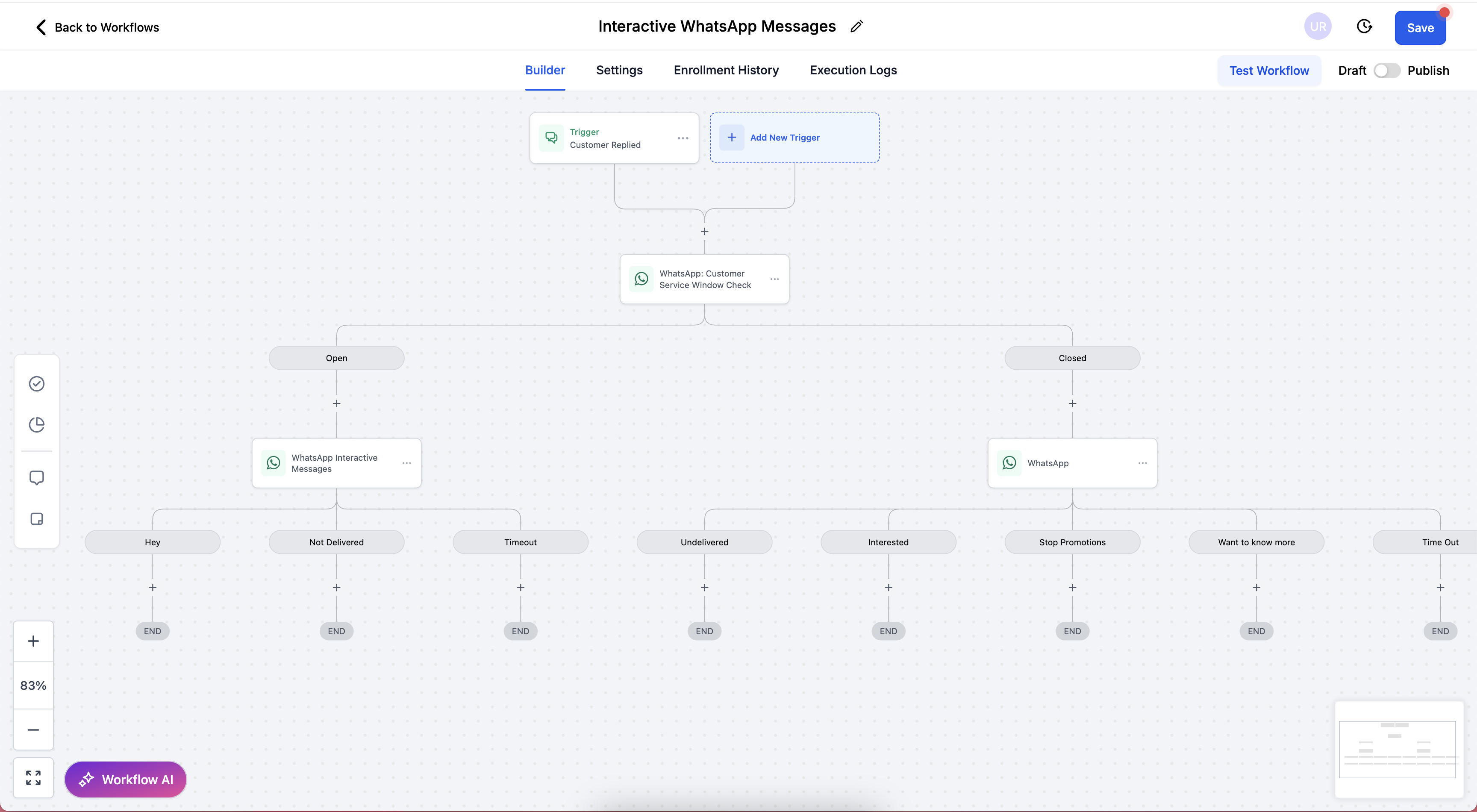
Important: If the window is closed, you must send a Marketing or Utility Template message to reopen the conversation.
How to Add the WhatsApp Interactive Messages Action
Once you've confirmed the Customer Service Window is open, you can add the Interactive Messages action.
- Open your automation
- Click Add Action (+)
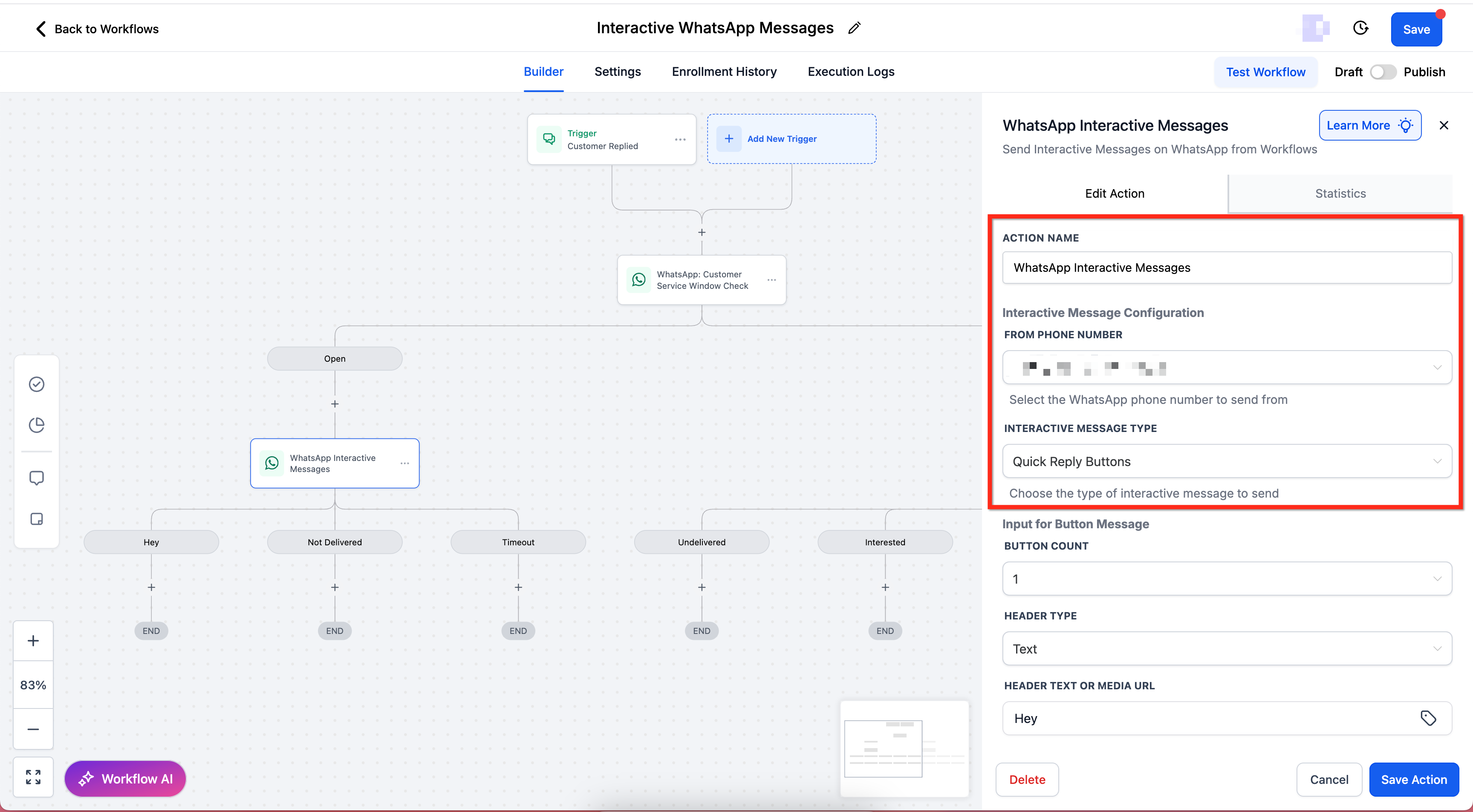
- Select WhatsApp Interactive Messages
- (Optional) Rename the action for clarity (default is "WhatsApp Interactive Messages")
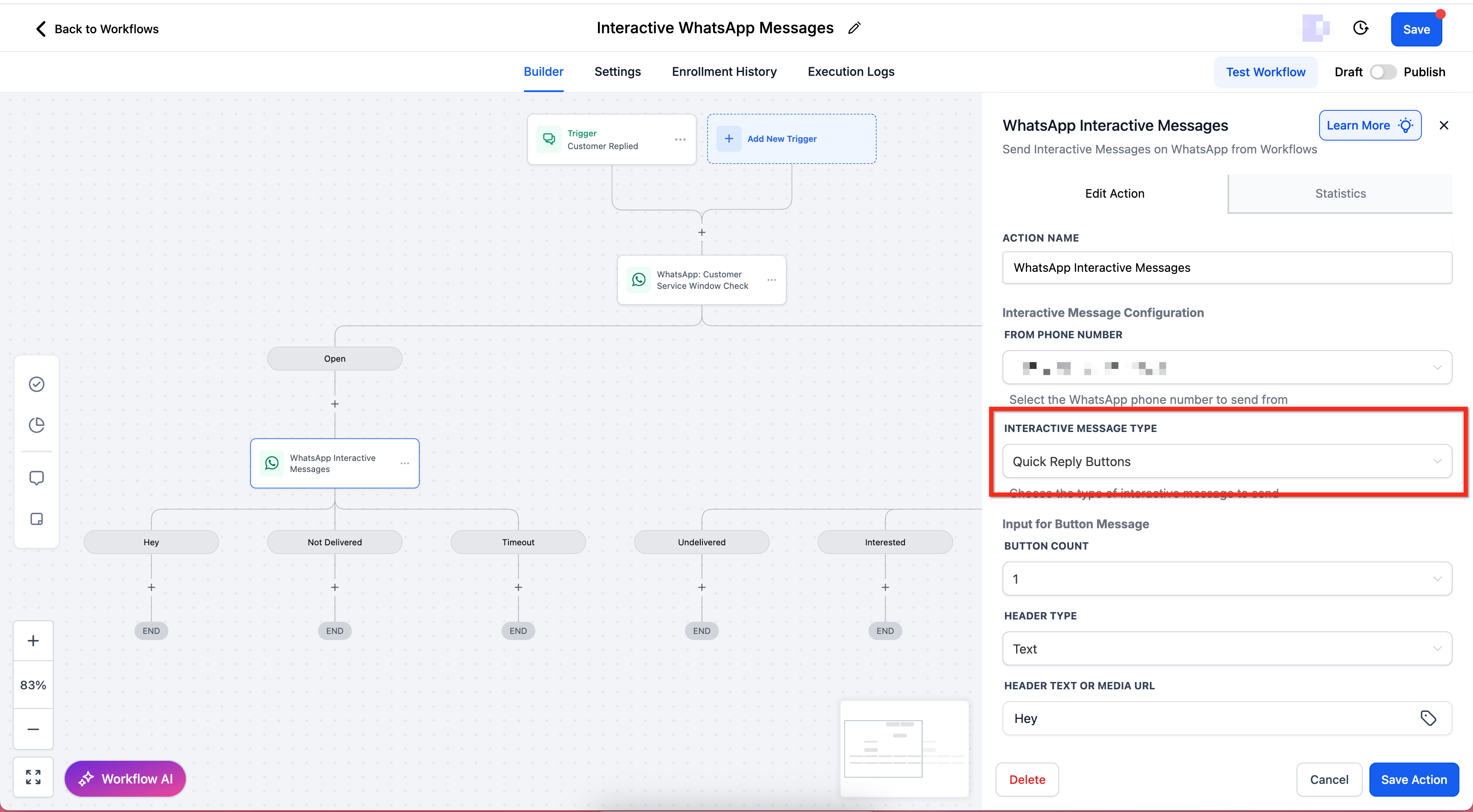
- In Interactive Message Configuration, select the FROM PHONE NUMBER then choose the INTERACTIVE MESSAGE TYPE
Interactive Reply Buttons (Interactive Message Type)
Interactive Reply Buttons let you present up to 3 predefined responses. Parents tap a button, and their selection can trigger branches, tags, or follow-up actions in your automation.
How to Configure Interactive Reply Buttons:
Step 1: Choose the Interactive Message Type
Set INTERACTIVE MESSAGE TYPE = Quick Reply Buttons
Step 2: Fill Out the Required Fields
The required fields for Quick Reply Button messages are:
- Input for Button Message – The main message text
- BUTTON COUNT – Choose up to 3
- HEADER TYPE – Text, Image, Video, or Document
- HEADER TEXT OR MEDIA URL – Enter text or media link
- BODY – Required; main message body
- FOOTER – Optional; short supporting text
- TIMEOUT UNIT – Minutes, Hours, or Days
- TIMEOUT VALUE – Enter number of units
- Button Titles – Add label text for each button
Once all information has been added, make sure to Save and Test your automation!
Pro Tip: Keep body text concise so buttons are visible without scrolling.
Location (Interactive Message Type)
With the Location Interactive Message Type, you can send families a location card that includes a clickable map preview of your center.
How to Configure Interactive Location Messages:
Step 1: Choose the Interactive Message Type
Set INTERACTIVE MESSAGE TYPE = Location
Step 2: Fill Out the Required Fields
Fill out the required fields in Location Details:
- LOCATION NAME – Example: Bright Beginnings Learning Center
- ADDRESS – Example: 123 Main Street, Springfield, CA 94025
- LATITUDE – Example: 37.758056
- LONGITUDE – Example: -122.425332
Save and test to confirm the location renders correctly in WhatsApp.

Pro Tip: Always double-check coordinates match your center's address to avoid confusion when parents are navigating to you.
Contact (Interactive Message Type)
With the Contact Interactive Message Type, you can send families a rich contact card that they can save to their device.
How to Configure Interactive Contact Messages:
Step 1: Choose the Interactive Message Type
Set INTERACTIVE MESSAGE TYPE = Contact
Step 2: Fill Out the Required Fields
Contact Name:
- FIRST NAME (required). Example: Sarah
- LAST NAME (required). Example: Johnson
Phone Numbers:
- PHONE NUMBER (required). Example: +16505551234
- PHONE TYPE – Choose Work, Mobile, or Home
Email:
- EMAIL ADDRESS (optional). Example: sarah.johnson@brightbeginnings.com
- EMAIL TYPE – Choose Work or Home
Save and test the automation to confirm the contact card appears properly in WhatsApp.
List (Interactive Message Type)
List Messages allow you to send structured menus with multiple sections and rows, giving families clear options to choose from. Each selection can trigger separate branches in your automation.
How to Configure Interactive List Messages:
Step 1: Choose the Interactive Message Type
Set INTERACTIVE MESSAGE TYPE = List
Step 2: Fill Out the Required Fields
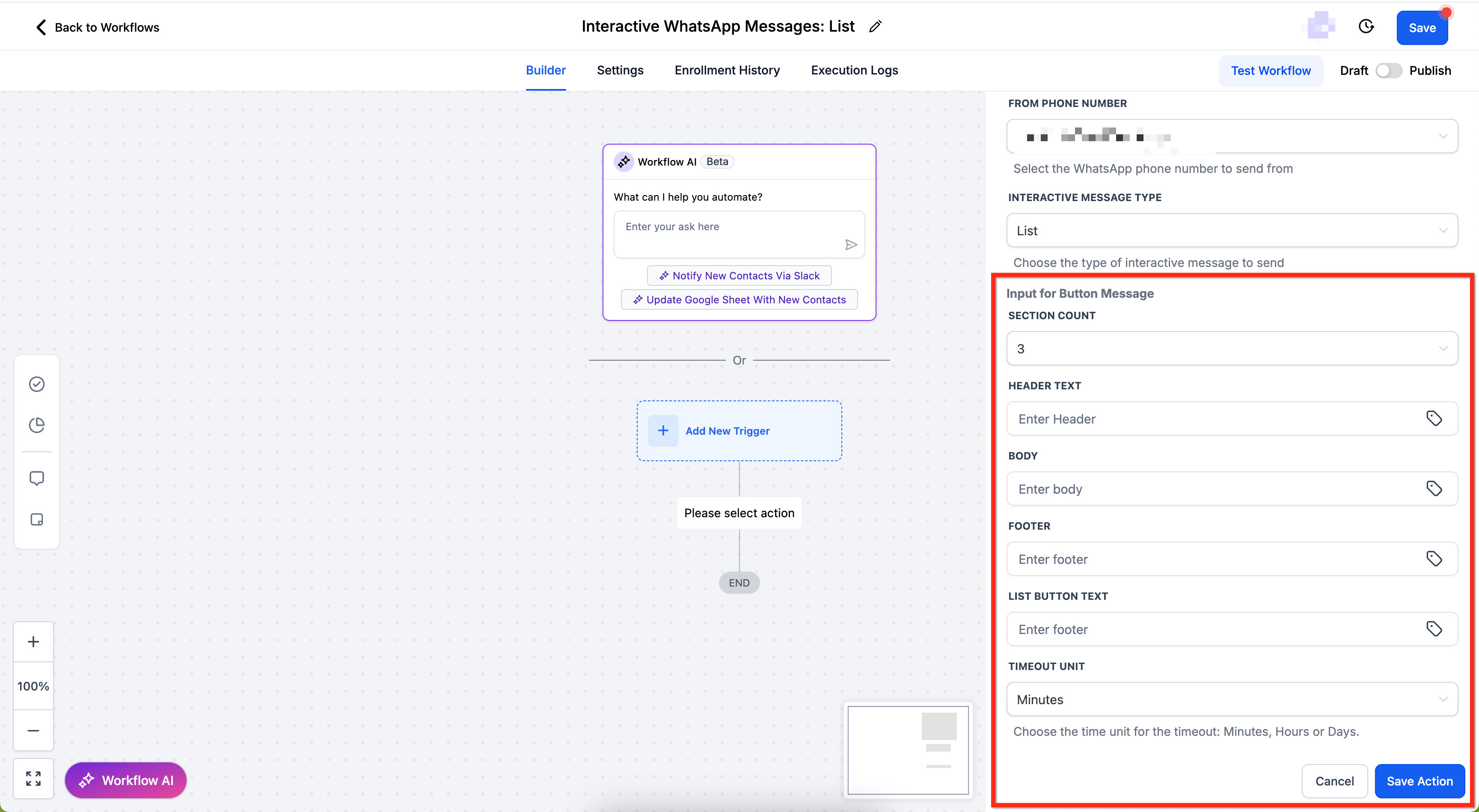
Fill out the required fields:
- Input for Button Message – The main prompt text for the menu
- SECTION COUNT – Choose how many sections you want (e.g., 3)
- HEADER TEXT – Optional; short header title
- BODY – The main message body
- FOOTER – Optional; supporting text
- LIST BUTTON TEXT – The button label that opens the list (e.g., "View Programs")
- TIMEOUT UNIT & VALUE – Choose the timeout (5 minutes to 2 days)
Configure each section:
- SECTION TITLE – Example: "Infant Programs" or "Preschool Programs"
- ROW COUNT – Number of options in this section
- For each row:
- ROW TITLE – Example: "Full-Time Infant Care"
- ROW DESCRIPTION – Optional; add details about the program
Save and test your automation to confirm the list displays correctly.
Pro Tip: Use list messages to let families select programs, tour times, or enrollment options—it's much easier than asking them to type their choice.
Interactive Call-to-Action (Visit Website) URL Button Messages
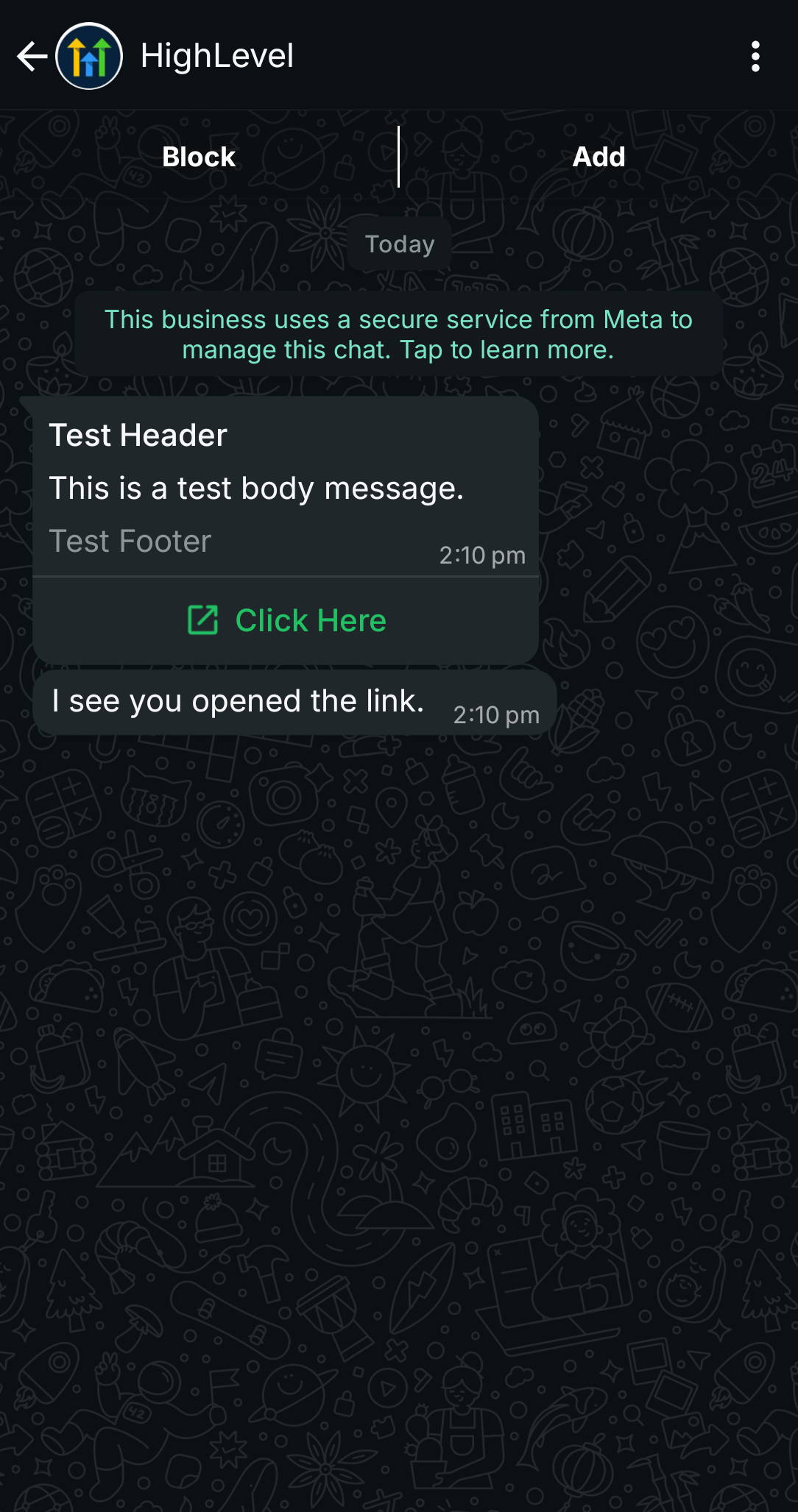
Call-to-Action buttons let you add a direct link to your enrollment page, application form, or payment portal right inside a WhatsApp message.
Example URL with Custom Fields
You can personalize URLs using custom fields from your Enrollio account. For example:
https://enrollio.com/enroll?parent={{contact.first_name}}&family_id={{contact.id}}
This URL will automatically insert the parent's first name and family ID when the message is sent.
Example Button Setup in Automation
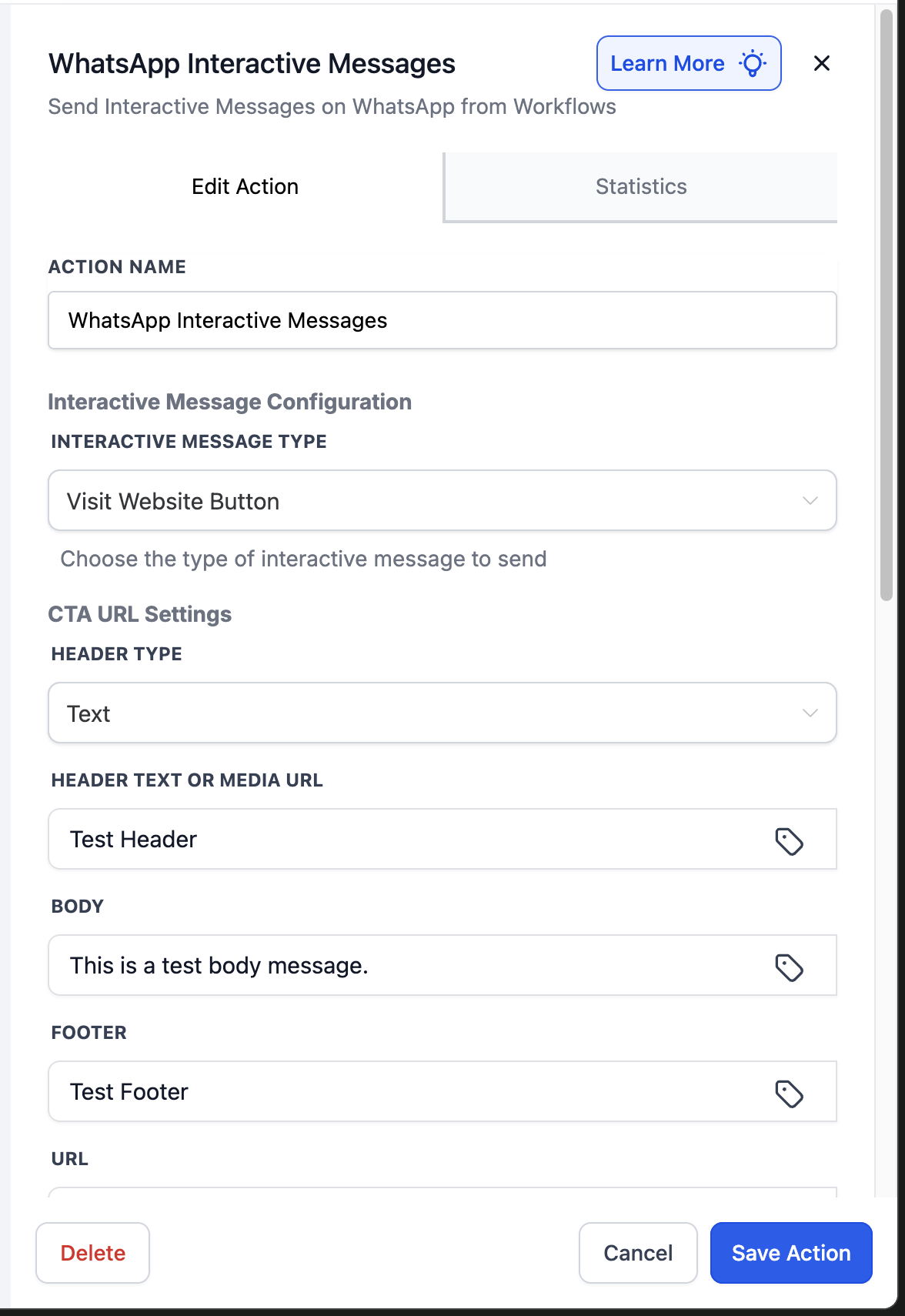
- Choose INTERACTIVE MESSAGE TYPE = Call-to-Action Button
- Enter your BUTTON TEXT (e.g., "Complete Enrollment")
- Enter your URL with any custom fields you want to include
- Fill out the message BODY and optional HEADER and FOOTER
- Save and test
Branching & Automation Behavior
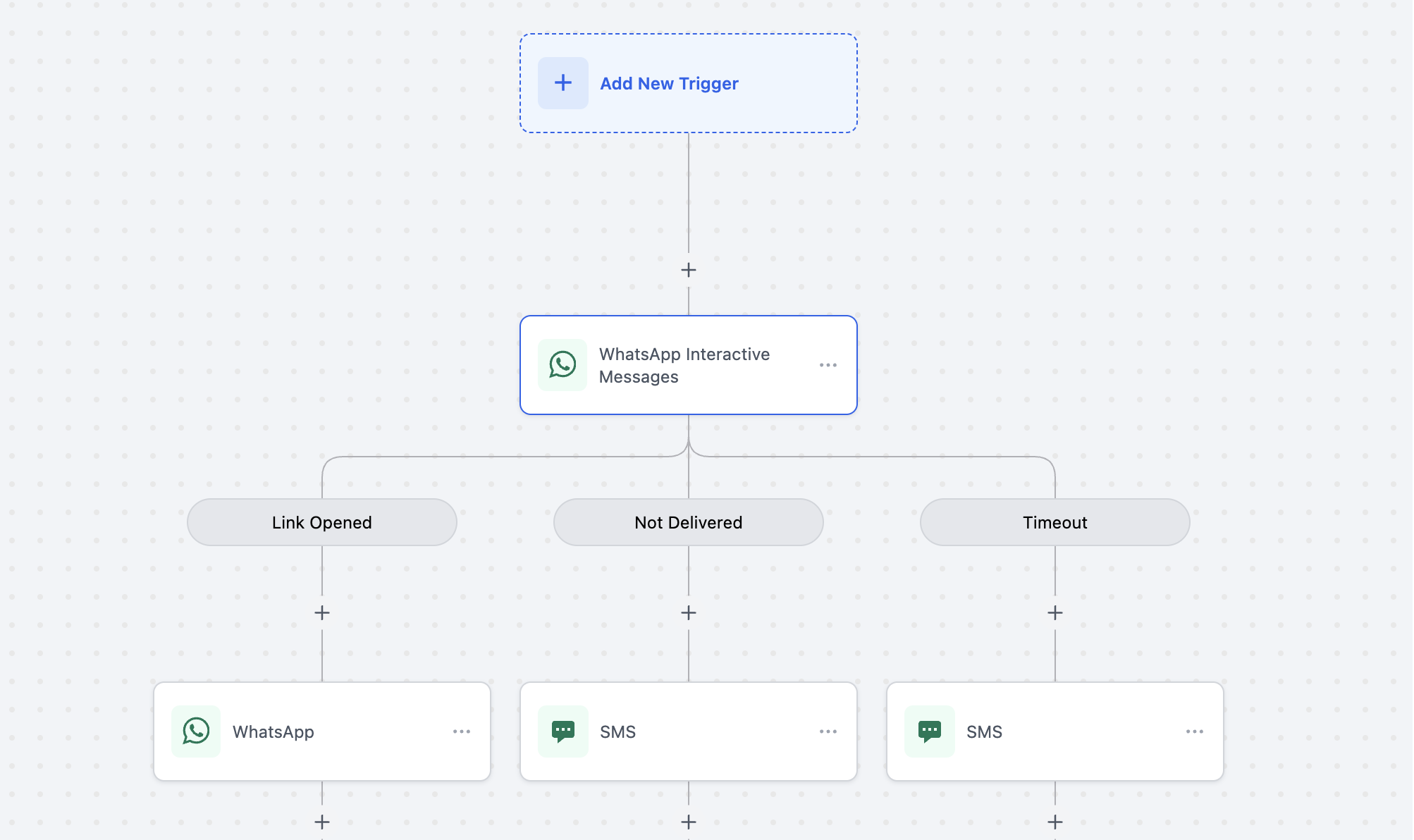
When a parent taps a button or selects an option from a list, Enrollio can automatically trigger the next step in your automation.
How Branching Works:
- Create separate branches for each button or list option
- Set conditions based on which button was clicked
- Route families to different follow-up messages, tags, or tasks based on their selection
For example, if a parent selects "Full-Time Infant Care" from a list, you can automatically:
- Tag them with "Interested: Infant Program"
- Send them a follow-up message with infant program details
- Create a task for your enrollment coordinator to call them
Best Practices
Always Check the Customer Service Window: Use the window check action or customer replied trigger to avoid sending interactive messages when the window is closed.
Keep Messages Concise: Parents are busy—get to the point quickly and make buttons clear and action-oriented.
Use Location Messages for Directions: When confirming tours, always include your center's location so families can navigate easily.
Test Before Launching: Send test messages to your own WhatsApp number to confirm formatting, links, and buttons work correctly.
Set Appropriate Timeouts: Give families enough time to respond, but not so long that the conversation goes stale (1-2 hours is typically good for tour confirmations).
Use Contact Cards for Staff Introductions: When assigning a family to an enrollment coordinator, send that coordinator's contact card so they can easily save their information.
Frequently Asked Questions
Can I send interactive messages outside the 24-hour window?
No. Interactive messages can only be sent when the Customer Service Window is open. If the window is closed, you'll need to send a pre-approved template message first to reopen it.
How many buttons can I add to a message?
You can add up to 3 quick-reply buttons per message.
Can I use emojis in button text?
Yes, emojis are supported in button text, headers, and message bodies.
What happens if a parent doesn't respond within the timeout period?
The automation will continue based on your timeout branch configuration. You can set up a reminder message or move them to a different follow-up sequence.
Can I track which buttons parents click?
Yes, button clicks are tracked in the family's conversation history and can trigger specific branches in your automation.
Do interactive messages cost more than regular WhatsApp messages?
No. As long as the Customer Service Window is open, interactive messages are included at no additional cost.
Comments
Please sign in to leave a comment.