
What is Authenticator App Support for Two-Factor Authentication (2FA)?
Authenticator App Support for Two-Factor Authentication (2FA) is a security enhancement that adds time-based one-time password (TOTP) functionality to your Enrollio account. This lets you link your account with authenticator apps like Google Authenticator, Microsoft Authenticator, and Authy for an extra layer of protection.
By using app-based verification, you get stronger security than traditional text message or email verification methods — especially important when managing sensitive family and enrollment data.
Note: We support any TOTP-based authenticator app, including Google Authenticator, Microsoft Authenticator, Authy, and others.
Key Benefits of Authenticator App Support
This feature offers significant advantages that improve both security and usability:
- Enhanced Security: Protects against phishing and SIM-swap attacks by using time-based verification codes instead of text messages
- User Flexibility: Choose your preferred authenticator app based on your workflow and security needs
- Compliance Ready: Meets current security best practices for handling family and enrollment information
- Easy Setup: Quick QR code scanning or manual entry gets you protected in minutes
- Backup Codes: Generate backup codes to ensure you always have access to your account
How To Set Up the Authenticator App for Two-Factor Authentication
Two-factor authentication adds an extra layer of security to your Enrollio account. By setting up an authenticator app, you'll have the option to use it alongside your phone number and email for verifying your identity during login.
Step 1: Navigate to the Two-Factor Authentication Setup
- Go to Settings → My Profile
- Click the Setup button in the Two-Factor Authentication section
- Use your preferred authenticator app to scan the displayed QR code, or manually enter the setup code provided
Step 2: Enter the Code from Your Authenticator App
- After scanning or manually entering the code into your authenticator app, you'll receive a one-time password (OTP)
- Click Next in Enrollio
- Enter the OTP to complete the setup
Step 3: Save Your Backup Codes
Save your backup codes in a secure location. You'll need these if you lose access to your authenticator app.
Important: If your backup codes are lost or compromised, you can regenerate them from My Profile at any time.
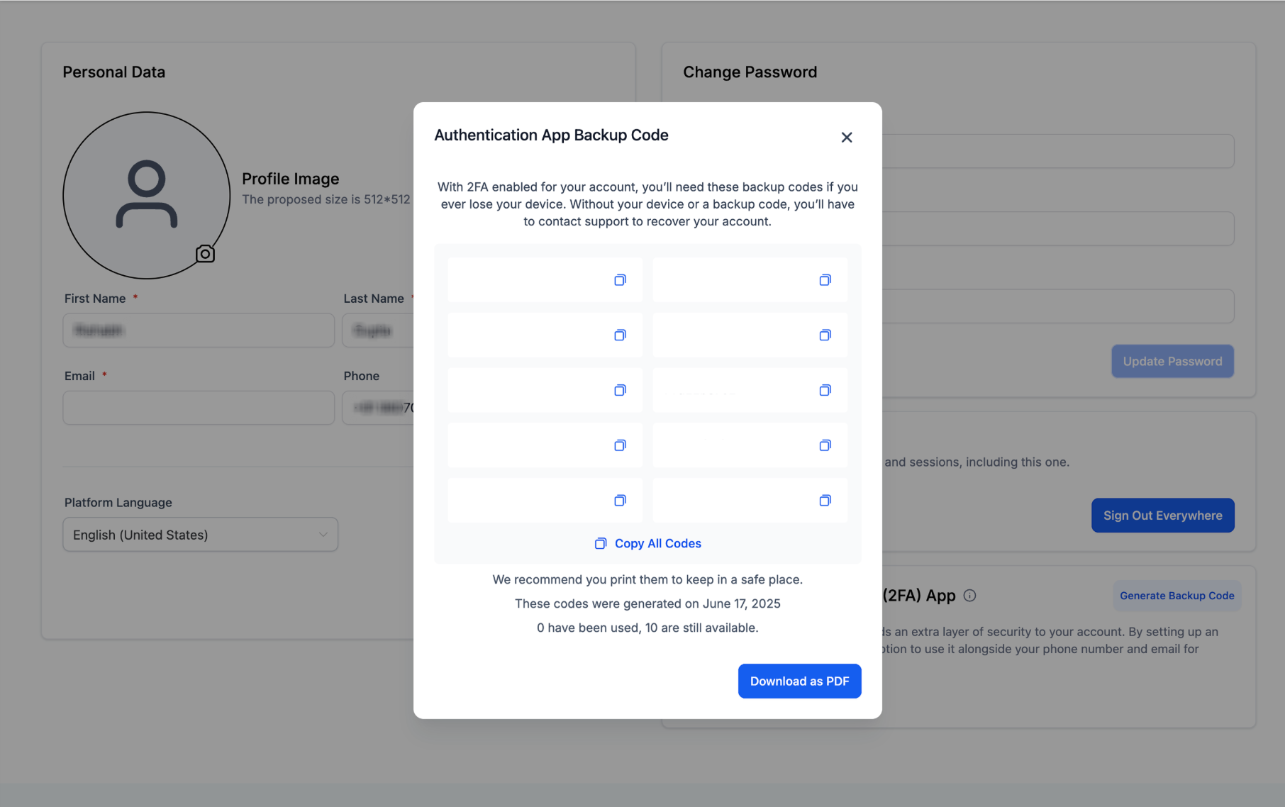
Pro Tip: Screenshot your backup codes and store them in a password manager or secure note app. Never share these codes with anyone.
Using Your Authenticator App to Log In
On your next login, select the authenticator app option for 2FA and enter the current code generated by your app.
Important Things to Know
- Only you (the primary logged-in user) can set up an authenticator app for your account. Admins cannot set this up for other users using "login as"
- 10 backup codes are generated at a time, and each code can only be used once
- On your authenticator app, you'll see "Enrollio" as the account name
Frequently Asked Questions
Can I use any authenticator app for this feature?
Yes, you can use any TOTP-based authenticator app such as Google Authenticator, Microsoft Authenticator, or Authy.
What should I do if I lose my authenticator device or backup codes?
You can regenerate backup codes from My Profile. However, it's crucial to store them securely to prevent unauthorized access. If you've lost both your device and backup codes, contact Enrollio support for account recovery.
Are there any restrictions on who can set up the authenticator app?
Only the primary user can set up the authenticator app for their account. Admins cannot configure it using "login as."
How many backup codes are generated, and how are they used?
Ten backup codes are generated at a time, and each code can only be used once for account recovery. After you use all 10, you can generate a new set.
What improvements in security does this provide over text message or email verification?
Authenticator apps generate time-based codes that are more secure against phishing and SIM-swap attacks compared to text messages and email methods. Since the codes are generated on your device and expire quickly, they can't be intercepted or stolen as easily.
Comments
Please sign in to leave a comment.