
Automatically Generate Invoices from Signed Enrollment Contracts
Make it simple for families to sign enrollment paperwork and pay tuition in one seamless experience. This guide shows you how to collect signatures and payments together — no back-and-forth needed.
Quick Overview: Sign & Pay in One Flow
When you attach a product list to your enrollment contract or registration form, Enrollio can automatically redirect families to pay immediately after they sign. You control when and how invoices are created, sent, and charged.
The Basic Steps
- Add a product list to your document (tuition, fees, etc.)
- Enable Direct Payment
- Send the document
- Family signs and gets redirected to pay instantly
Setting Up a New Document with Automatic Invoicing
Navigate to: Payments › Documents & Contracts › New Document
1. Add Your Primary Signer
This is typically the parent or guardian enrolling their child. Only the primary signer will be redirected to pay after signing.
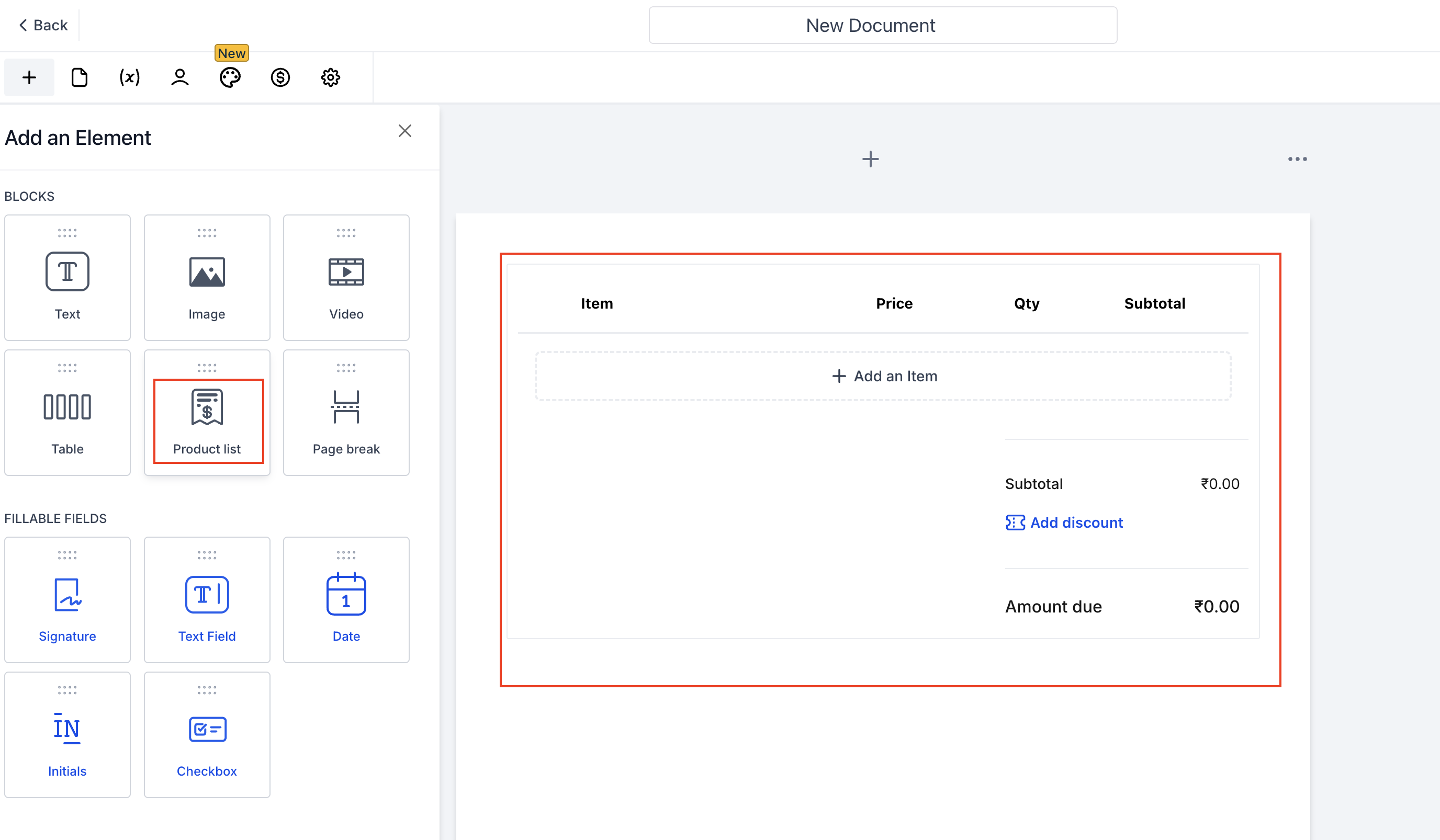
2. Add Your Product List
Click Add Product List and select the items you want to bill:
- One-time items: Registration fees, supply fees, deposits
- Recurring items: Monthly tuition, weekly care fees
Enrollio automatically tags items and sets the invoice type based on what you add.
One-Time Products
When you add only one-time products, the invoice type is automatically set to One time. You can:
- Make items optional
- Allow parents to edit quantities
- Adjust these settings in the properties panel on the right
Recurring Products (Tuition, Weekly Fees)
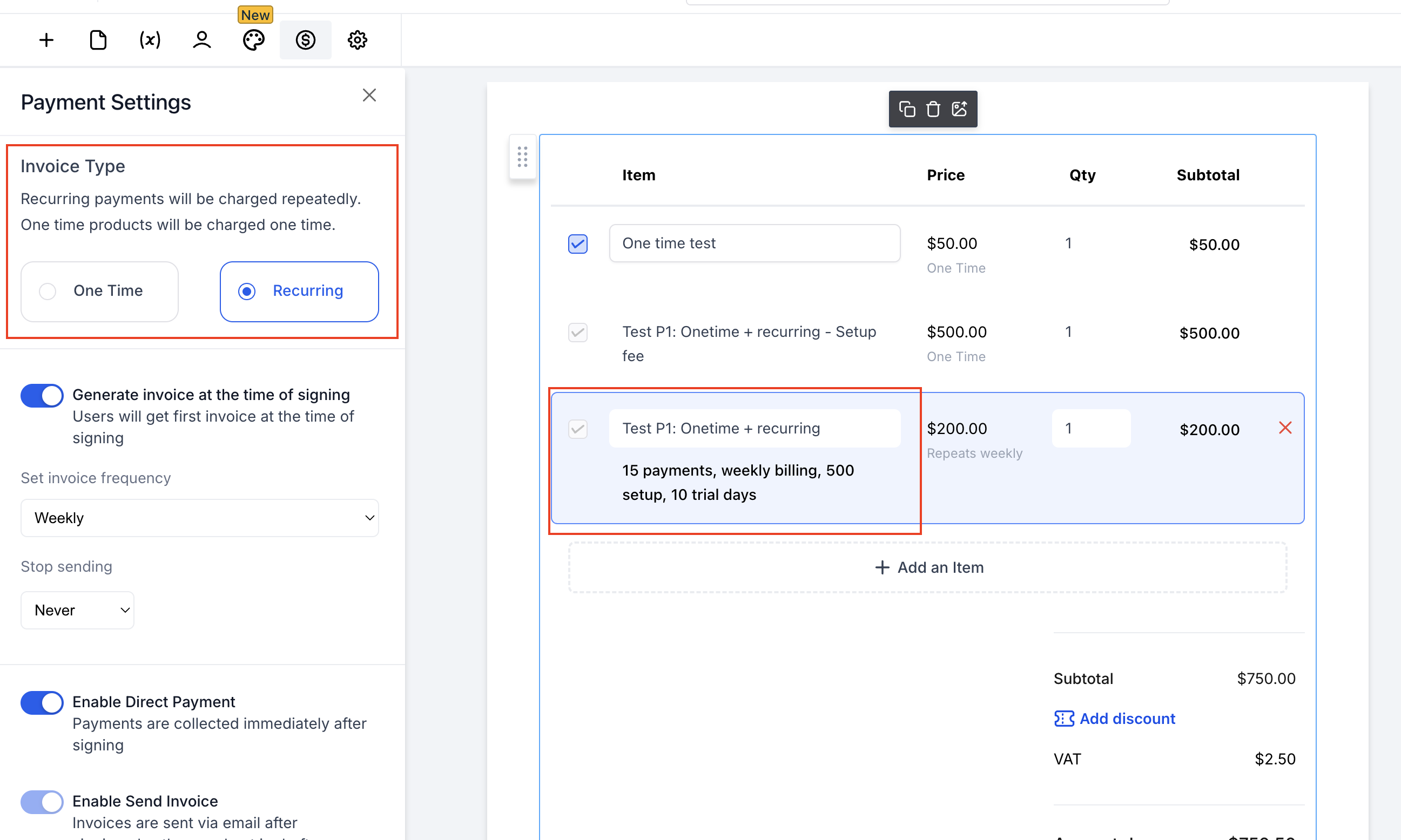
When you add any recurring product, the invoice type changes to Recurring. Important notes:
- One document can only have one recurring frequency (weekly, monthly, etc.)
- Choose the frequency in the Invoice frequency settings on the left
- Set when the recurring schedule starts: at signing or on a future date
3. Configure Your Payment Settings
In the Payments section on the left, you'll see four key settings:
Direct Payment
ON: Redirects the primary signer to pay immediately after signing (if an invoice exists at that moment)
OFF: No redirect; parent receives the invoice by email to pay later
Send Invoice
ON: Automatically emails the invoice when it's generated
OFF: Invoice stays as a draft so you can review and send it manually
Auto-Payment
ON: Saves the parent's payment card and automatically charges future recurring invoices
OFF: Parent pays each invoice manually when they receive it
Pro Tip: Auto-Payment is ideal for monthly tuition — set it and forget it. One-time payments happen at checkout regardless of this setting.
Live Mode
True (Live): Real charges using your live payment credentials
False (Test): Test the flow without collecting real funds (depends on your payment gateway)
4. Send the Document
Once configured, send your document to the family. They'll receive it by email or text.
What Happens When Families Sign
The signing experience depends on your product list setup:
One-Time Products Only
Primary signer is redirected to pay the invoice immediately after signing. They complete payment right then.
Recurring Products (Schedule Starts at Signing)
Primary signer is redirected to pay the first invoice immediately. Future invoices follow the recurring schedule.
Recurring Products (Schedule Starts Later)
No redirect at signing. The first invoice is created and sent according to your schedule (e.g., on the first Monday, on a specific date).
Important: Only the primary signer is redirected to pay. If you have multiple signers (both parents, for example), the others simply sign and move on.
Automating This Process with Templates
Save time by creating a template and triggering it automatically when families take certain actions (submit a waitlist form, book a tour, etc.).
Create Your Template
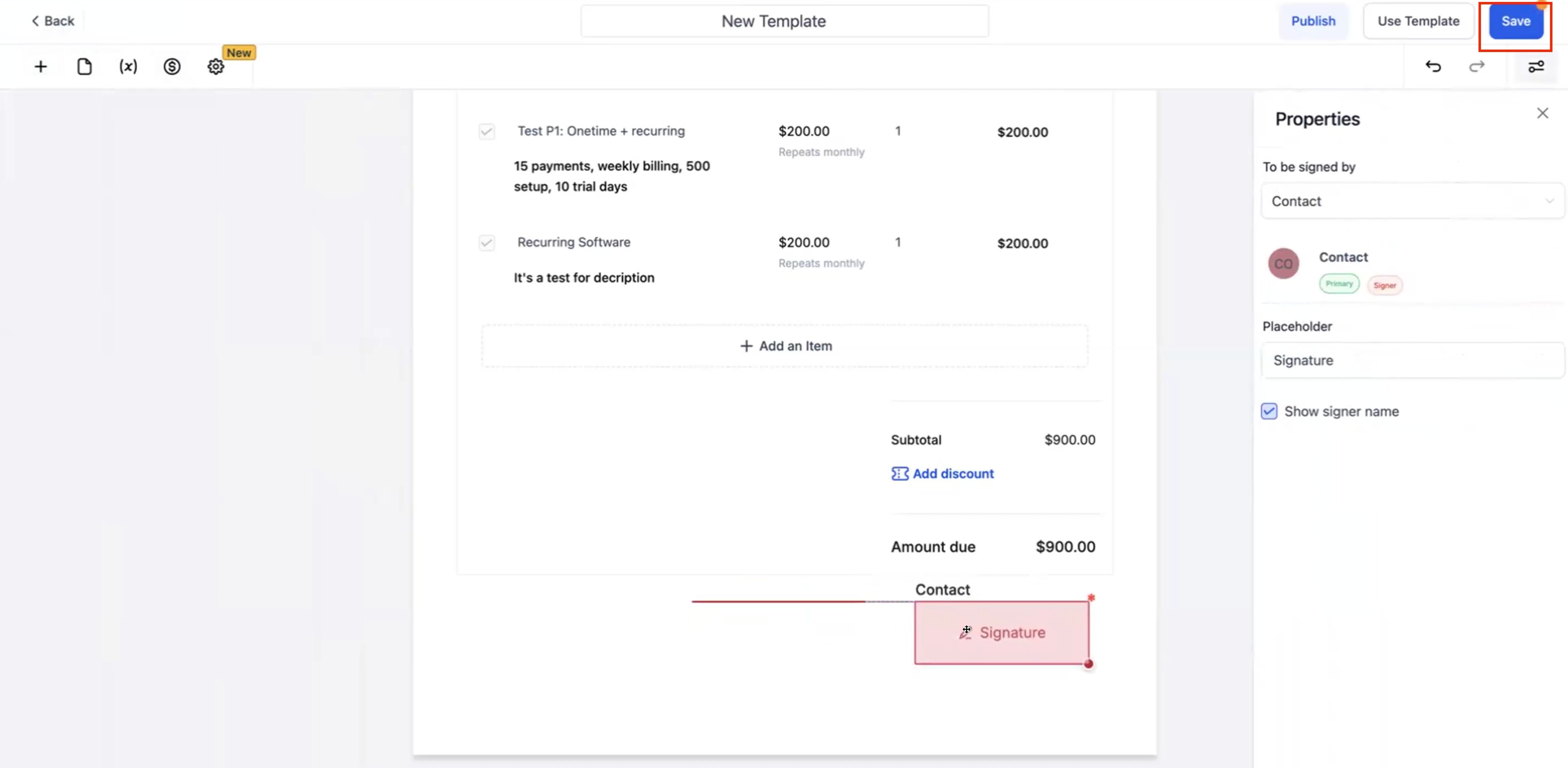
Navigate to: Payments › Documents & Contracts › Templates › New Template
- Add your signature fields where needed
- Add your product list (registration fee, first month tuition, etc.)
- For recurring items, choose when the schedule starts
- Configure Direct Payment, Send Invoice, Auto-Payment, and Live Mode
- Save the template
Set Up the Automation
- Go to Automations
- Create a new automation or edit an existing one
- Add Action: Send Documents & Contracts
- Select your template
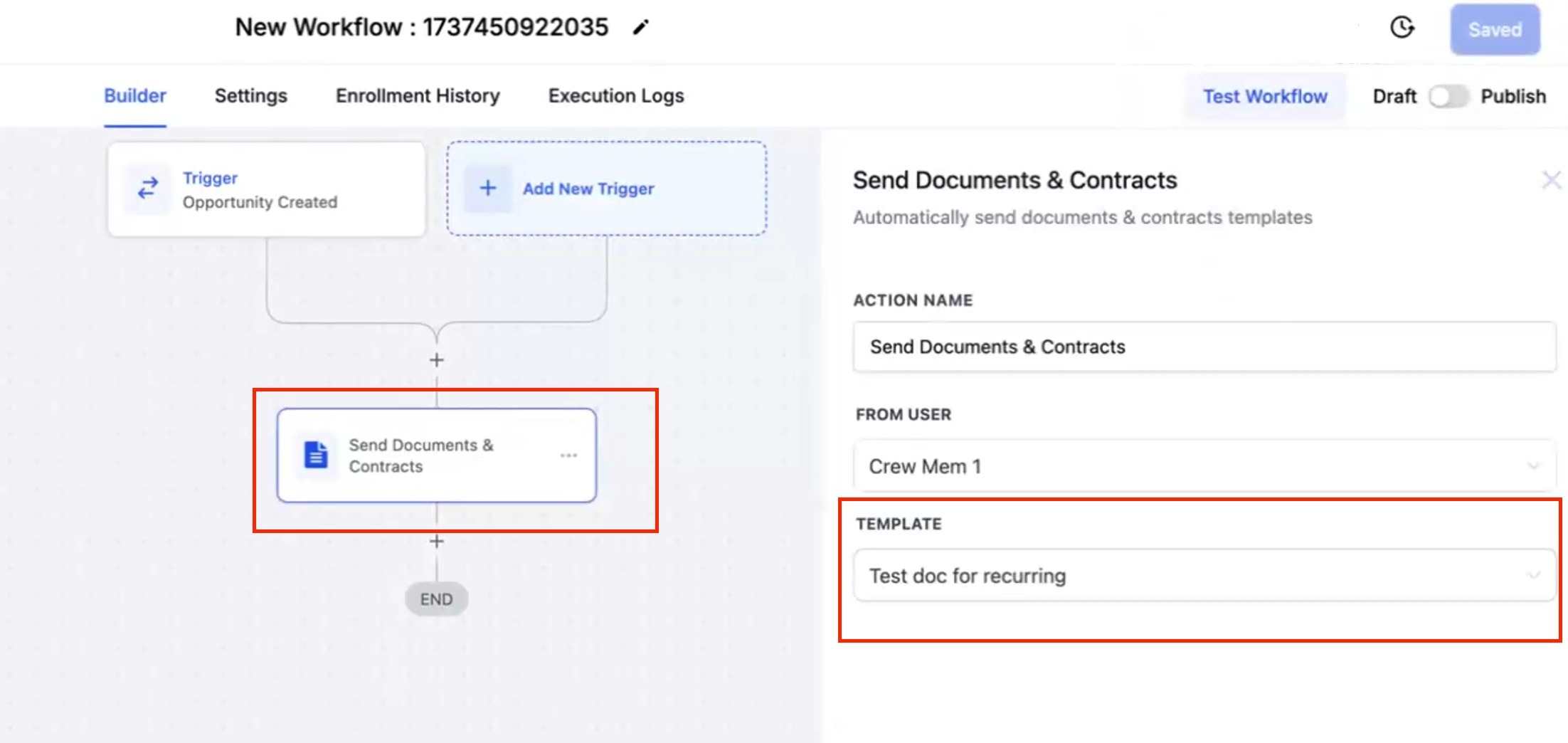
Now when your automation triggers (family books a tour, fills out a form, etc.), they'll automatically receive your document. After the primary signer signs, they're redirected to pay based on your configuration.
Tracking Documents and Payments
Keep tabs on everything in two places:
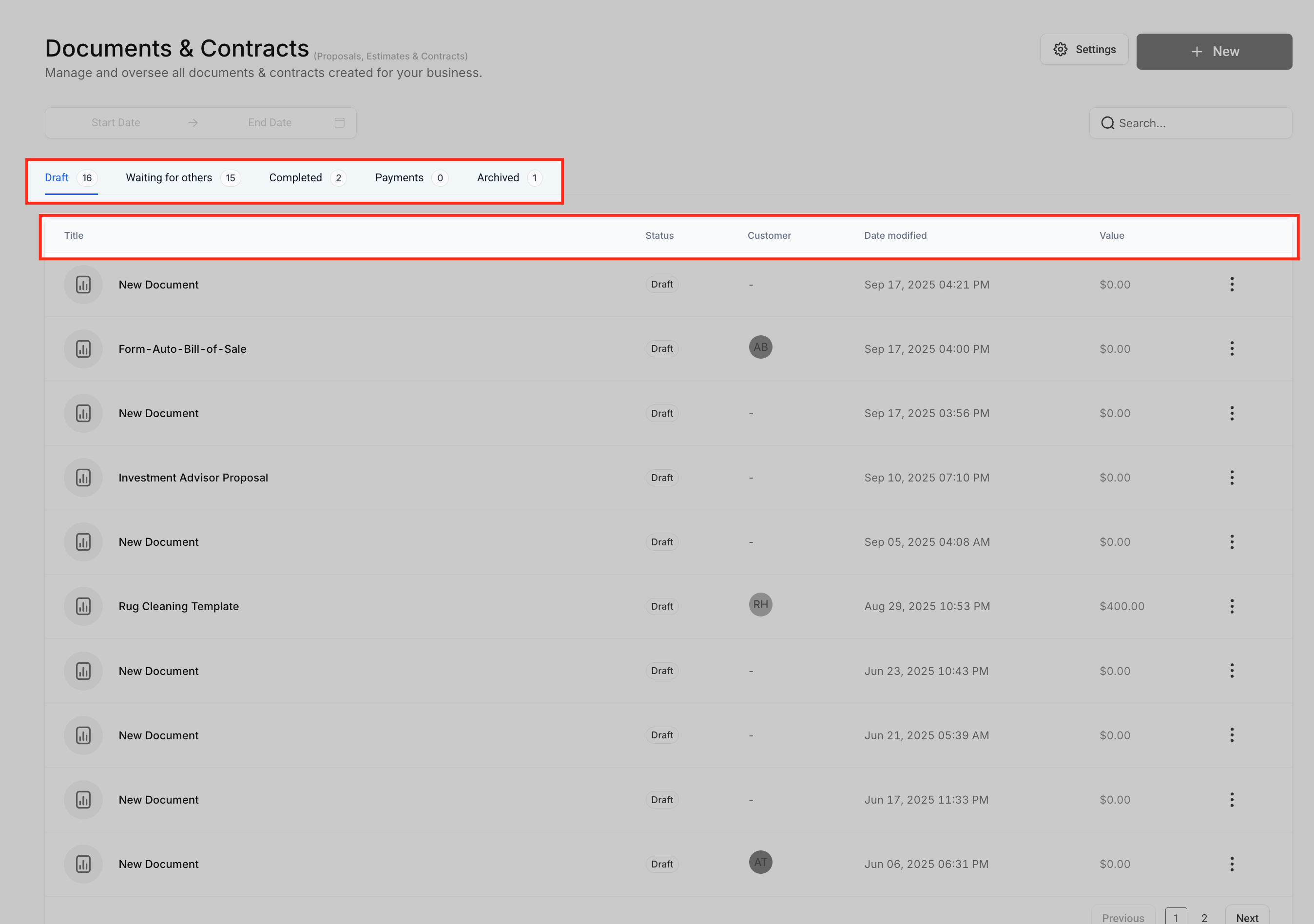
Documents & Contracts Dashboard
Navigate to: Payments › Documents & Contracts
See document status, signing progress, and payment status all in one view.
Invoices Dashboard
Navigate to: Payments › Invoices
Track each individual invoice, payment status, recurring schedule progress, and auto-payment results.
Common Scenarios & Tips
Weekly Tuition Example
If your recurring schedule is set to every Thursday and a family signs on Thursday, the first invoice generates immediately and they're redirected to pay. If they sign on Tuesday, the first invoice is sent the following Thursday.
Multiple Family Members Signing
You can add multiple signers (both parents, for instance), but only the primary signer is redirected to the payment page. The others just sign and receive a confirmation.
Setup Fees or Registration Fees
These appear as one-time line items on the first invoice. Only your recurring tuition continues on the schedule.
Mixing One-Time and Recurring Items
Absolutely possible. Your product list tags will show which items are one-time vs. recurring. One-time items bill on the first invoice; recurring items follow the schedule you set.
Troubleshooting
Why didn't my family get redirected after signing?
Two common reasons:
- Direct Payment is OFF — Turn it on in your document or template settings
- No invoice existed at signing — This happens with recurring schedules set to start on a future date. Change the start time to "at signing" if you want immediate payment
Can I mix one-time and recurring products?
Yes. The tags in your product list show you which is which. One-time items bill first; recurring items continue per your schedule.
My invoice wasn't generated from the payment schedule
This usually happens when a payment schedule date is set after the invoice due date. It often occurs when the first payment uses a custom date instead of "Upon primary signature."
Fix: Set your first payment to "Upon primary signature" so the schedule aligns correctly.
Real-World Childcare Example
Bright Futures Childcare sends an enrollment contract with:
- $150 registration fee (one-time)
- $1,200/month tuition (recurring, starts at signing)
Settings:
- Direct Payment: ON
- Send Invoice: ON
- Auto-Payment: ON
- Live Mode: True
What happens:
- Parent receives the contract by email
- Parent signs the contract
- Parent is immediately redirected to pay $1,350 (registration + first month)
- Parent saves their payment card
- Every month, Enrollio auto-charges $1,200 for tuition
- Parent receives email receipts for each payment
Pro Tip: Test this flow with Live Mode set to False first. Make sure everything works smoothly before going live with real charges.
Next Steps
Ready to streamline your enrollment? Create your first payment-enabled contract today:
- Go to Payments › Documents & Contracts › New Document
- Add your enrollment paperwork or use one of our childcare templates
- Add a product list with your registration fee and tuition
- Enable Direct Payment and Auto-Payment
- Send it to a test family (yourself or a team member)
Once you're comfortable with the process, save it as a template and automate it. Your families will appreciate the smooth, professional experience.
Comments
Please sign in to leave a comment.