
Managing User Roles and Permissions in Your Client Account
This article shows you how to manage user roles and permissions in Enrollio. You'll learn how to control what your team can access, assign custom visibility rules, and configure detailed permissions for specific features.
What are User Roles and Permissions?
User roles and permissions determine what features a team member can access within your childcare center's Enrollio account. Whether you're giving a front desk staff member limited visibility or assigning full admin access to your director, user roles ensure the right people see and control the right parts of your platform.
Each user is assigned one of two roles—Admin or User—and can be further customized using detailed permissions and visibility toggles like Only Assigned Data. You can also copy permissions from one user to another to save time during onboarding.
Why User Roles Matter for Your Childcare Center
Role management isn't just about organization—it drives security and efficiency:
- Data Security: Restrict access to families, enrollment pipelines, and campaigns to approved staff only
- Cleaner Interface: Hide unused features so team members navigate faster and focus on their work
- Accountability: Track every action to a specific user for clear audit trails
- Faster Onboarding: Clone proven permission templates instead of rebuilding settings from scratch
How to Set Up User Roles and Permissions
Follow these steps to configure what each team member can see and do in Enrollio.
Step 1: Navigate to My Staff
Go to Settings and click My Staff.
Step 2: Select or Create a User
Click the Edit (pencil) icon next to an existing team member, or select + Add Employee to create a new user profile.
Step 3: Assign a Role
Click the Roles and Permissions tab on the left. In the Role dropdown, choose:
- Admin: Full access to all features and settings in your account
- User: Restricted access—detailed permissions apply
Step 4: Enable or Disable Features
Use the checkboxes to grant or restrict access to features like Conversations, Automations, Calendars, Voice AI, and more.
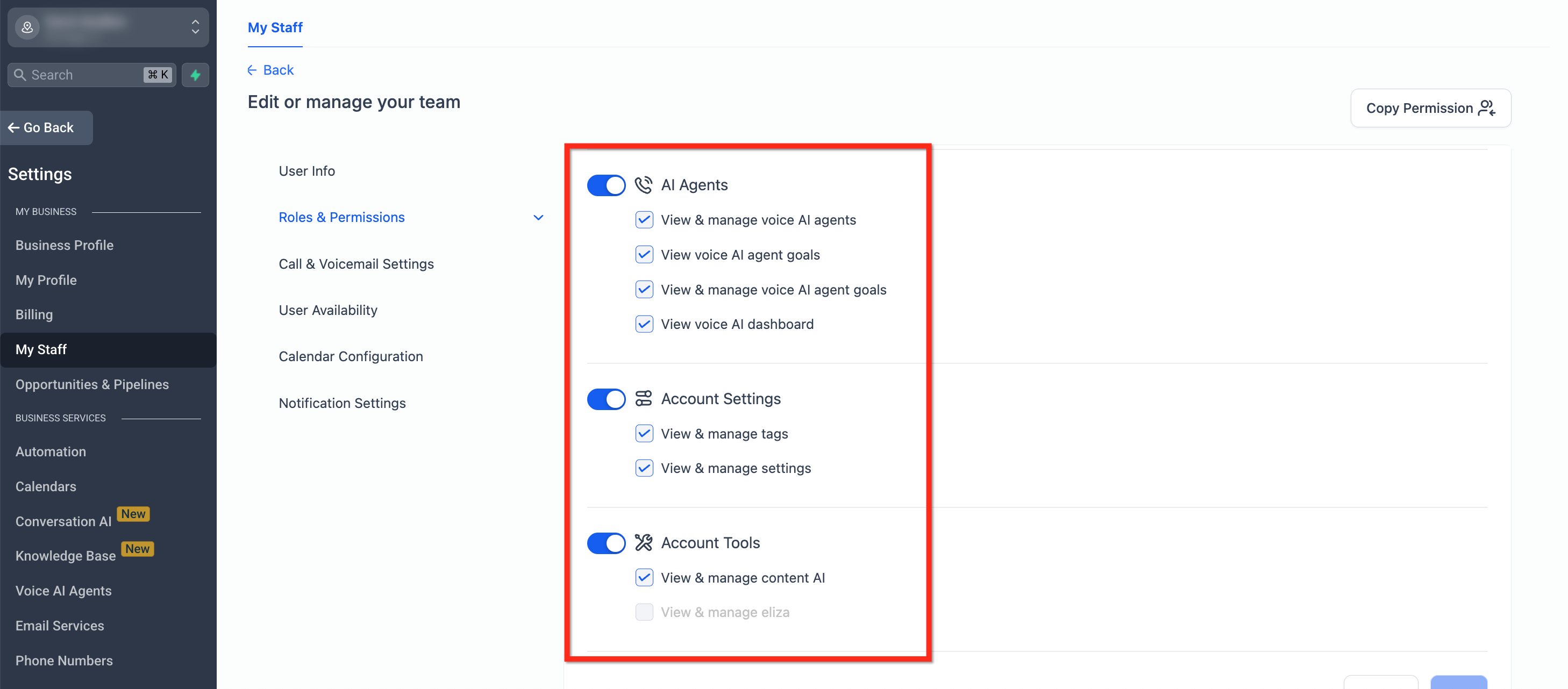
Step 5: Set 'Only Assigned Data' if Needed
Toggle Only Assigned Data to restrict a user's visibility to only the families, enrollment opportunities, and data explicitly assigned to them.
Step 6: Save Your Changes
Click Update or Save to apply the new permission settings.
Restrict Visibility with "Only Assigned Data"
Limiting access based on assigned data helps protect sensitive information while empowering users to focus on their own work.
When you turn Only Assigned Data ON, the user will only see:
- Families assigned to them
- Enrollment opportunities where they're the owner
- Appointments or tasks linked to their name
Pro Tip: Use this feature for enrollment coordinators to ensure they only see and manage their own pipeline without accessing other staff members' conversations or families.
Understanding Admin vs User Roles
User roles define high-level access, while permissions define which features they can use.
We recommend granting Admin access only to center directors, assistant directors, or trusted managers.
- Admin: Full control over all tools, settings, and data in your account
- User: Limited access based on permissions; can be restricted to assigned data only
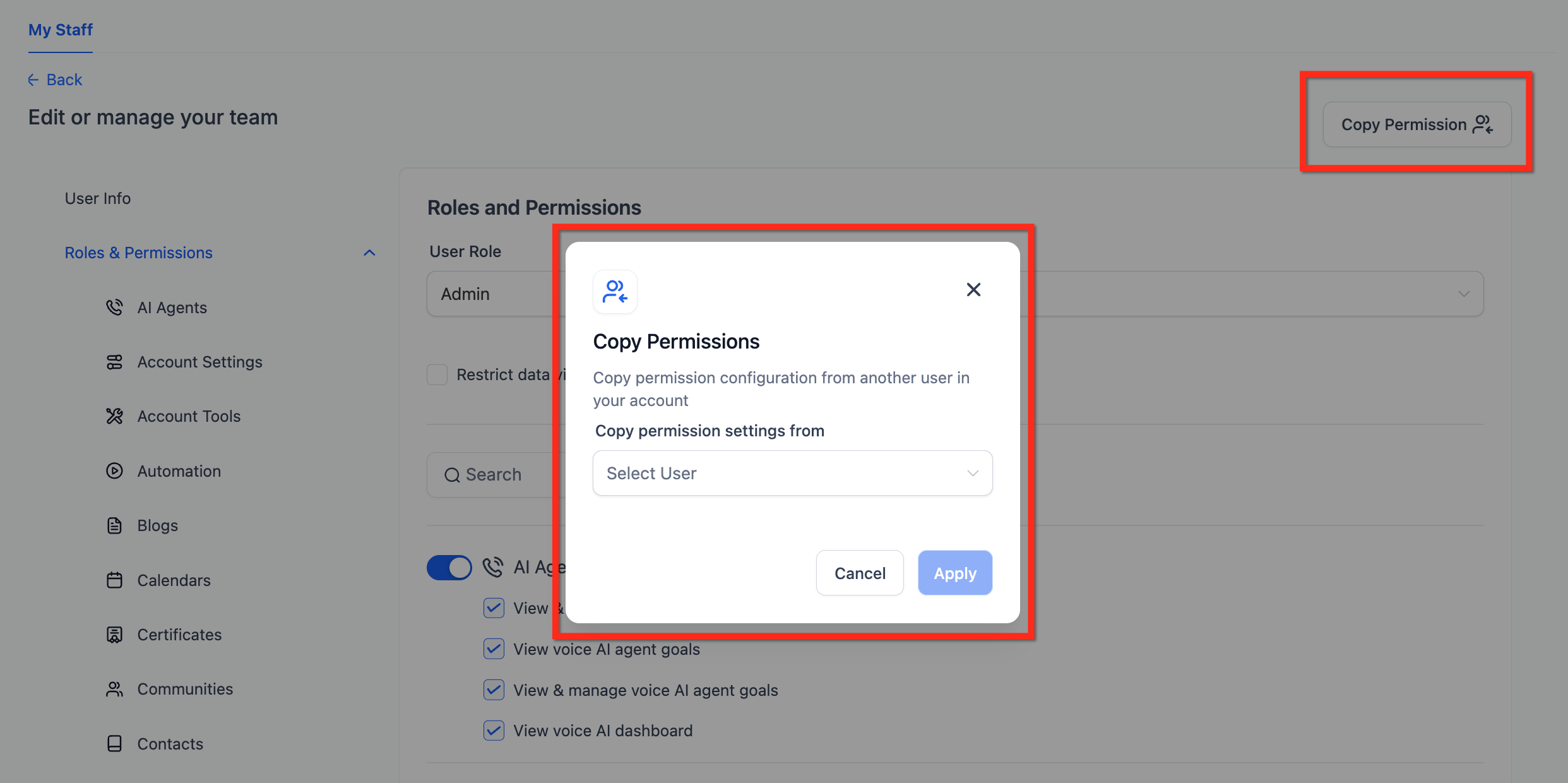
Copy Permissions Between Users
Save time when onboarding new team members by copying an existing permission set.
- Go to Settings › My Staff
- Click the Edit (pencil) icon next to an existing user or select + Add Employee
- Select the Roles and Permissions tab
- Click the Copy Permissions button in the top right
- Use the Copy Permissions dropdown to choose a source user
- Click Copy to apply those exact settings
Detailed Permissions for Specific Features
Enrollio offers detailed control over access to individual features and their sub-functions. This is ideal for managing larger teams, limiting sensitive actions, and reducing the risk of accidental changes.
You can set detailed permissions for:
- AI Agents: Control who can configure and manage your AI assistant
- Account Settings: Restrict who can change account-wide settings
- Automations: Manage who can create, edit, or delete automated workflows
- Calendars: Control access to tour scheduling and appointment calendars
- Families: Restrict who can view, edit, or export family information
- Conversations: Manage access to parent communications and text messages
- Forms: Control who can create and edit enrollment forms
- Landing Pages: Restrict access to your enrollment pages and websites
- Enrollment Opportunities: Manage who can view and update enrollment pipelines
- Payments: Control who can process payments and view financial data
- Dashboard: Restrict who can export dashboard widget data
- User Management: Control who can add, edit, or remove team members
Pro Tip: Use the "Export data" permission to control who can download dashboard reports. This helps limit accidental sharing of sensitive enrollment and financial data.
Frequently Asked Questions
Q: What happens if I disable a feature for a user but it's used in an automation?
The user won't see or interact with that feature, but your automations will still run. Make sure someone else retains full access to manage those automations.
Q: Can I assign different permissions for each calendar?
Yes, calendar permissions are detailed. You can allow booking access to specific calendars or give full management rights.
Q: Can I bulk assign permissions across multiple users?
Not currently. You can use the Copy Permissions feature one-by-one to speed up the process.
Q: Can a user manage multiple client accounts without being an Enrollio admin?
Yes. If you manage multiple childcare locations in Enrollio, you can give a user access to specific locations without making them a platform-wide administrator.
Comments
Please sign in to leave a comment.