
What is the Arrow Control Feature?
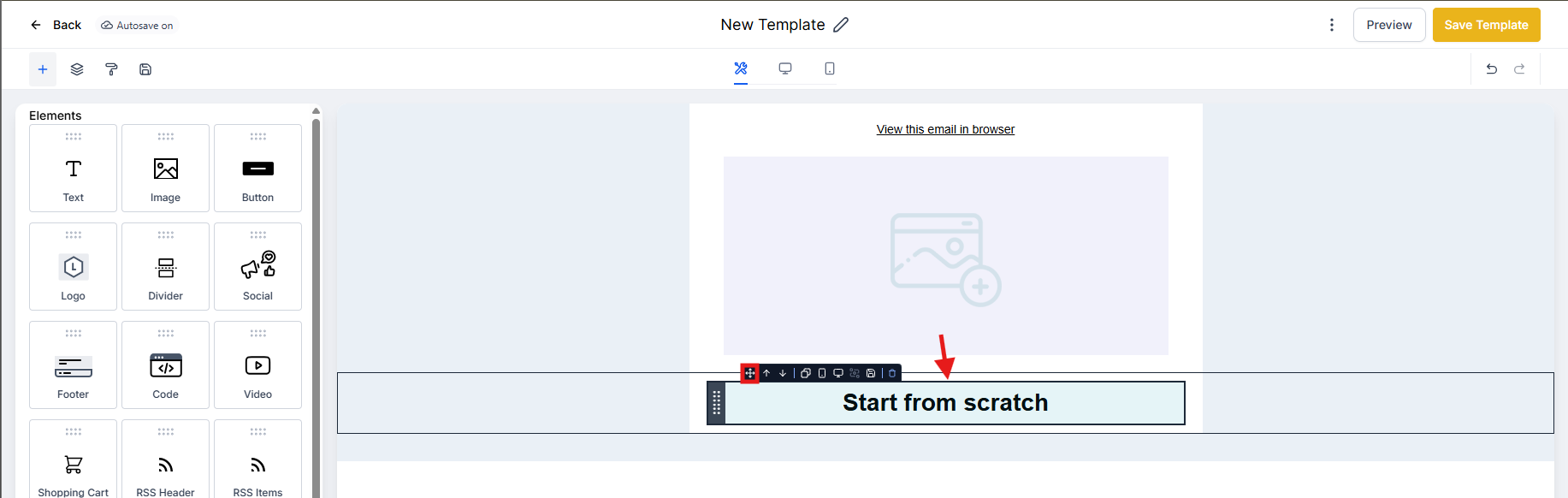
The Arrow Control feature in the Email Builder lets you move elements or layout sections up or down with a single click. Instead of dragging and dropping, you can now reposition content instantly — making it faster to build emails for parent updates, tour confirmations, enrollment reminders, and more.
Key Benefits of Arrow Controls
Arrow controls make designing emails simpler and more precise:
- Speeds up layout reordering
- Simplifies element movement without relying on drag-and-drop
- Reduces design errors from accidentally misplacing blocks
- Makes the email builder more intuitive for new users
- Allows precise adjustments with one click
- Works for both individual elements and entire layout blocks
How To Use Arrow Controls to Rearrange Layouts
Arrow controls make repositioning content blocks in your emails faster and more precise.
- Navigate to Email Marketing from the left-hand menu.
- Open an existing Template or create a new Campaign.
- Hover over the element (like text, image, or button) or layout block you want to move.
- Click the up (↑) or down (↓) arrow that appears near the top-left of the section.
- The element or layout will move instantly to its new position.
Arrow Controls for Elements vs Layouts
Understanding the difference between elements and layouts helps you use the arrows more effectively.
Elements: These are individual pieces like text blocks, buttons, or images. The arrows move these items within their current layout section.
Layouts: These are broader sections (like header, body, or footer). Arrows here move the entire section up or down within your overall email design.
 Frequently Asked Questions
Do I need to save after each move?
No. All changes are automatically saved as you make them.
Can I still use drag-and-drop?
Yes. Arrow controls are an enhancement, not a replacement. You can continue to use drag-and-drop alongside the arrows.
Are arrow controls available on mobile?
Currently, this feature is optimized for desktop use.
What if the arrows don't appear?
Make sure your mouse is hovering directly over a movable element or layout. If they still don't show, try refreshing the editor or checking for browser updates.
Next Steps
- Practice using the arrow controls by editing a template now
- Experiment with mixing arrow-based movement and drag-and-drop for more flexibility
- Learn how layout blocks work to better plan your email structure
Comments
Please sign in to leave a comment.